Imagine if building a website was like playing Tetris, stacking pre-made pieces in whichever order you want.
Well, that’s what you get with WordPress block patterns: premade designs that let you add entire sections to any page or post with a click. And unlike in Tetris, they won’t disappear when you stack them perfectly.
This sounds great on paper. But how exactly do you use block patterns?
What is a WordPress block pattern?
A WordPress block pattern is a pre-designed arrangement of Gutenberg (Block Editor) blocks — headings, images, buttons, columns — that you can insert into any page or post with a single click. Once inserted, every block in the pattern is fully editable, and you can reuse the same pattern as many times as you like.
And patterns aren’t limited to posts and pages. If you use a block theme, you can also insert them into templates and template parts in the Site Editor — dropping a ready-made footer pattern into your footer template part, for example, instead of building it block by block.
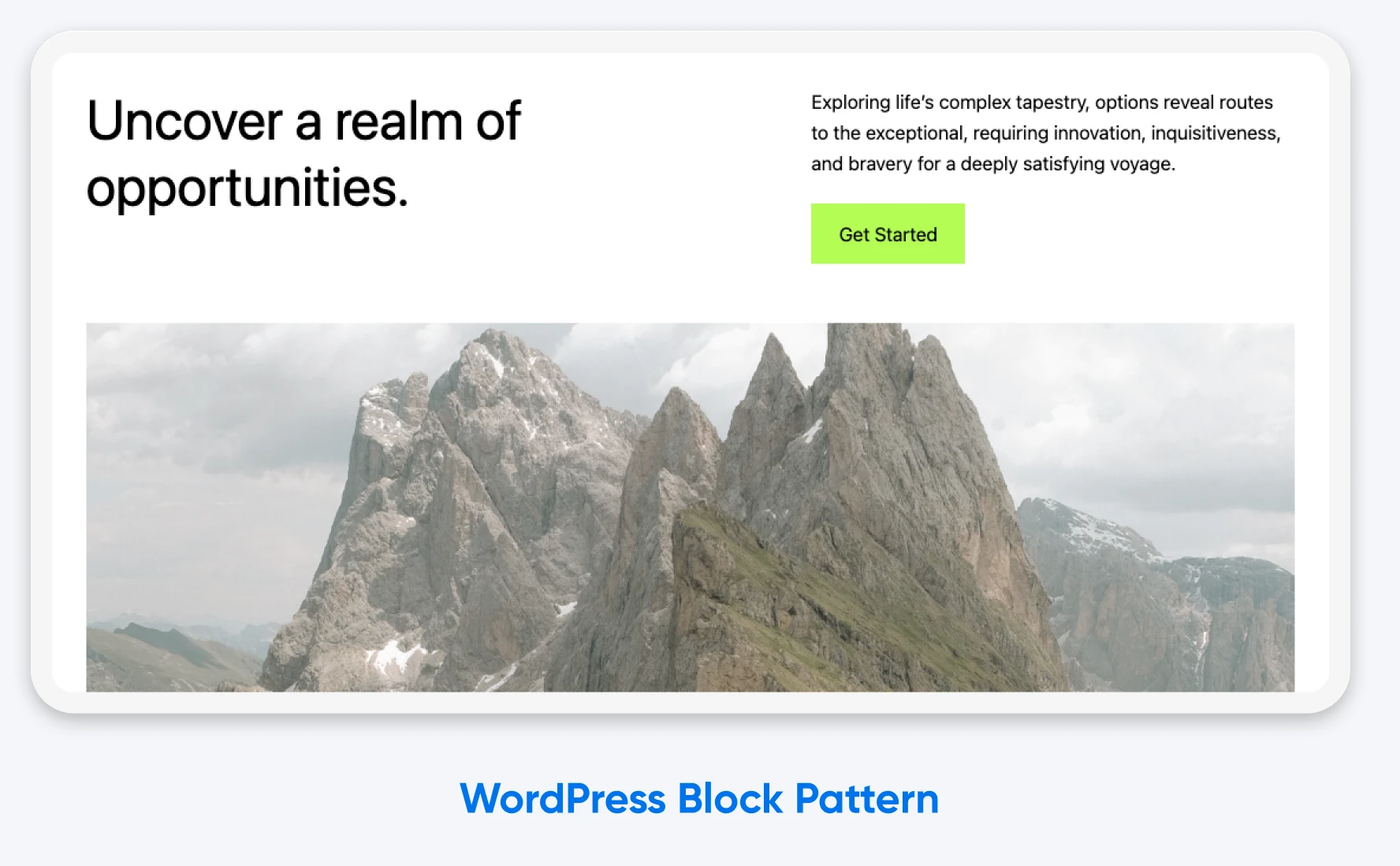
Once you insert them, you can edit and modify the content in the block patterns. The individual components work just like regular Gutenberg blocks, so you can make adjustments to colors and fonts, reorder components, swap out images, and change content within each block.
Gutenberg
Gutenberg is the name for the Block Editor project in WordPress. A lot of WordPress developers and enthusiasts use the terms Gutenberg Editor and Block Editor interchangeably.
You can insert the same pattern in multiple places on your site, including more than once on a page or post.
Getting to know WordPress blocks
To fully understand how block patterns work, you need to know a little bit about blocks.
Blocks have been a key part of WordPress since late 2018 when version 5.0 introduced the new WordPress block editor, Gutenberg.
This flexible component of WordPress allows you to construct posts and pages using individual elements, known as blocks. Examples include images, paragraphs, lists, headers, embeds, dividers, tables, and columns.
Embed
To embed means to insert external content directly into a web page rather than linking to it. Embedding enables visitors to view the content without leaving the website.
Each block comes with a set of customization options, such as alignment, color, and font size. You can move blocks around via a drag-and-drop editor.
To go back to the Tetris metaphor, imagine being able to move a piece in the game after it had fully dropped, all because you didn’t like where you’d placed it to begin with. That’s the sort of flexibility that Gutenberg gives you.
Block patterns: what are the benefits?
When you build block patterns, you’re simply sticking together multiple blocks to create a small template. This means you can assemble your website rather quickly, since you’re not building every page from scratch.
And that’s not the only benefit. Here are some other advantages:
- You can create entire sections using blocks: Creating your own custom block patterns means anyone who works on your site can manage content without worrying about the layout and design.
- You can use pre-made block patterns from professional designers: You can modify these templates to match your style, giving you plenty of options to play with when creating a post or page.
- You can save patterns that you use often: After creating or selecting block patterns, you can save them and build a library of templates that suits your brand.
- You can build new content more quickly: Dropping in a saved pattern takes one click. Rebuilding the same section block by block means re-adding and re-styling every heading, image, and button each time.
- They are flexible and customizable: You can tailor pre-built block patterns to your specific design and functionality needs. Find a block pattern in the WordPress Pattern Directory that appeals to you and change it however your creativity guides you.
- They are theme-independent: Custom-built block patterns aren’t bound to any one particular theme, so they come along if you switch themes later. One caveat: patterns inherit the active theme’s colors, fonts, and spacing. The layout survives a theme change, but the look will shift, so check your pattern-built pages after switching and adjust anything that no longer matches.
- They can support responsive layouts: Core blocks and well-built patterns adapt to different screen sizes, like smartphones or tablets. Custom spacing, oversized images, and third-party blocks can still misbehave on small screens, so preview pattern-built pages on a phone before you publish.
How block patterns have evolved over time
Block patterns were introduced all the way back in August 2020 with the release of WordPress 5.5 “Eckstine.”
Since that time, we have seen plenty of evolution:
- WordPress 5.9 (January 2022) brought full site editing, plus the nearly full-screen Pattern Explorer for browsing and comparing patterns.
- WordPress 6.0 (May 2022) made the block inserter easier to navigate and made it easier for developers to add patterns to their themes.
- WordPress 6.3 (August 2023) introduced synced patterns, which look identical across your site. You can edit a synced pattern on one page, and all the other copies will update to look the same.
- WordPress 6.4 (November 2023) added custom pattern categories, advanced filtering in the inserter, and the option to import and export patterns as JSON files.
- WordPress 6.5 (April 2024) introduced new data views for managing pages, templates, and patterns in the Site Editor.
- Version 6.6 (July 2024) introduced overrides for synced patterns, so each copy can have some unique content (headings, paragraphs, buttons, and images) while the styling stays consistent.
- WordPress 6.7 through 6.9 (November 2024 to December 2025) kept refining the editing experience, including 6.7’s zoom-out mode for composing whole pages with patterns.
- WordPress 7.0 shipped in May 2026 and is the current major release as of this update.
How to create custom block patterns in WordPress
Today, block patterns are pretty powerful and very easy to use.
If you’re ready to start experimenting with this WordPress feature, here’s a quick step-by-step tutorial:
Step 1: Create a draft post
To create a block pattern, start by making a new draft post or page in WordPress.
A new draft won’t have any existing content clutter. It’s a blank canvas for your block-based creativity!
Start adding the blocks you would like to include in your pattern: headers and paragraphs, columns, images and galleries, video and audio media, separators, and more.
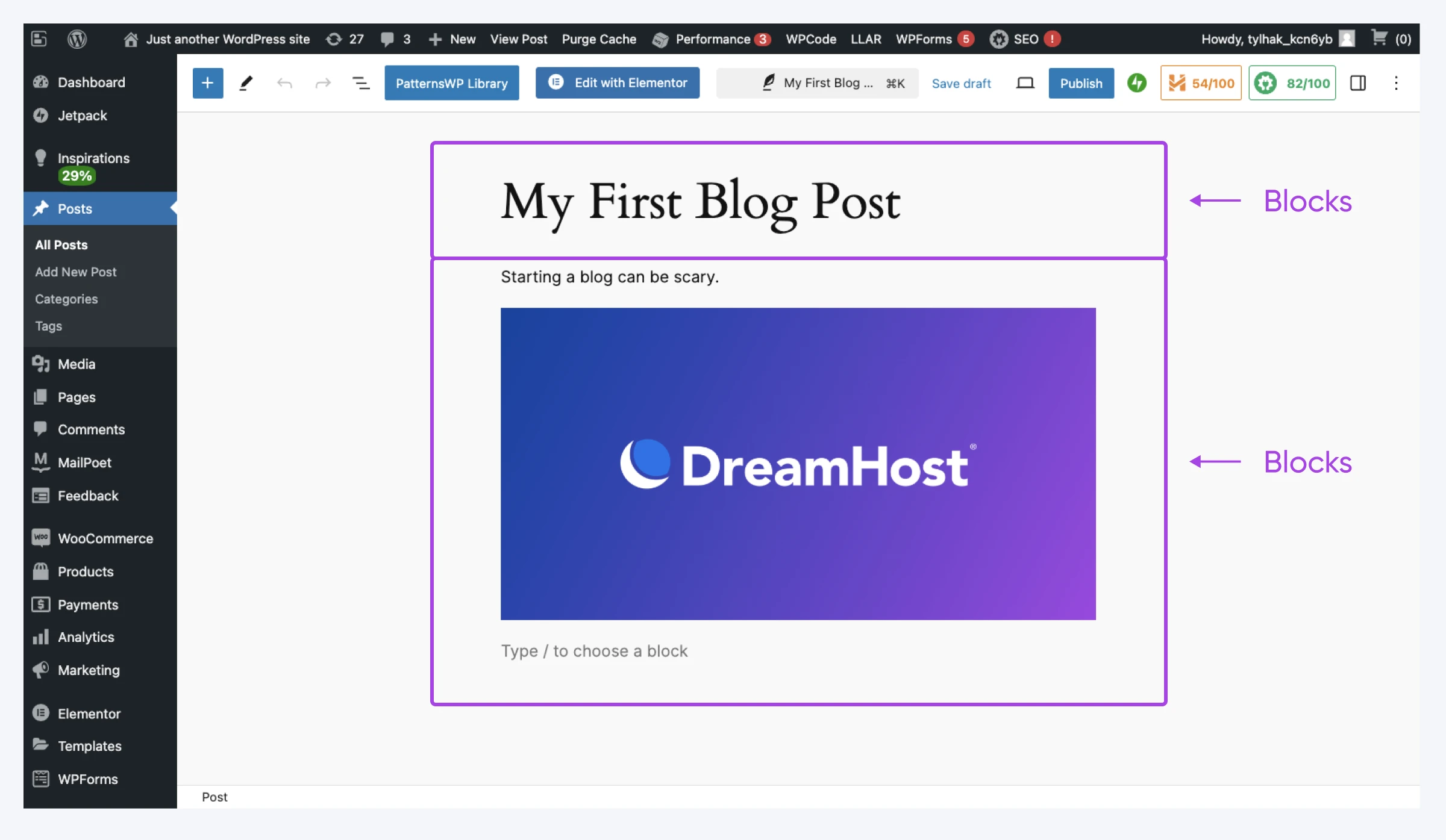
Once you’ve added your blocks, make sure to style them. Use the built-in color palettes and font selectors.
Step 2: Select and copy blocks
Once your blocks are looking just so, you need to create the pattern. Don’t worry, it’s not technical!
Start by manually selecting all of the blocks that you want in your block pattern. Click the first block, then hold Shift and click the last block you want to appear in the pattern (this works on both Windows and Mac).
To finish up, click the three vertical dots on the toolbar that appears above your selected blocks, and select Create pattern from the drop-down menu.
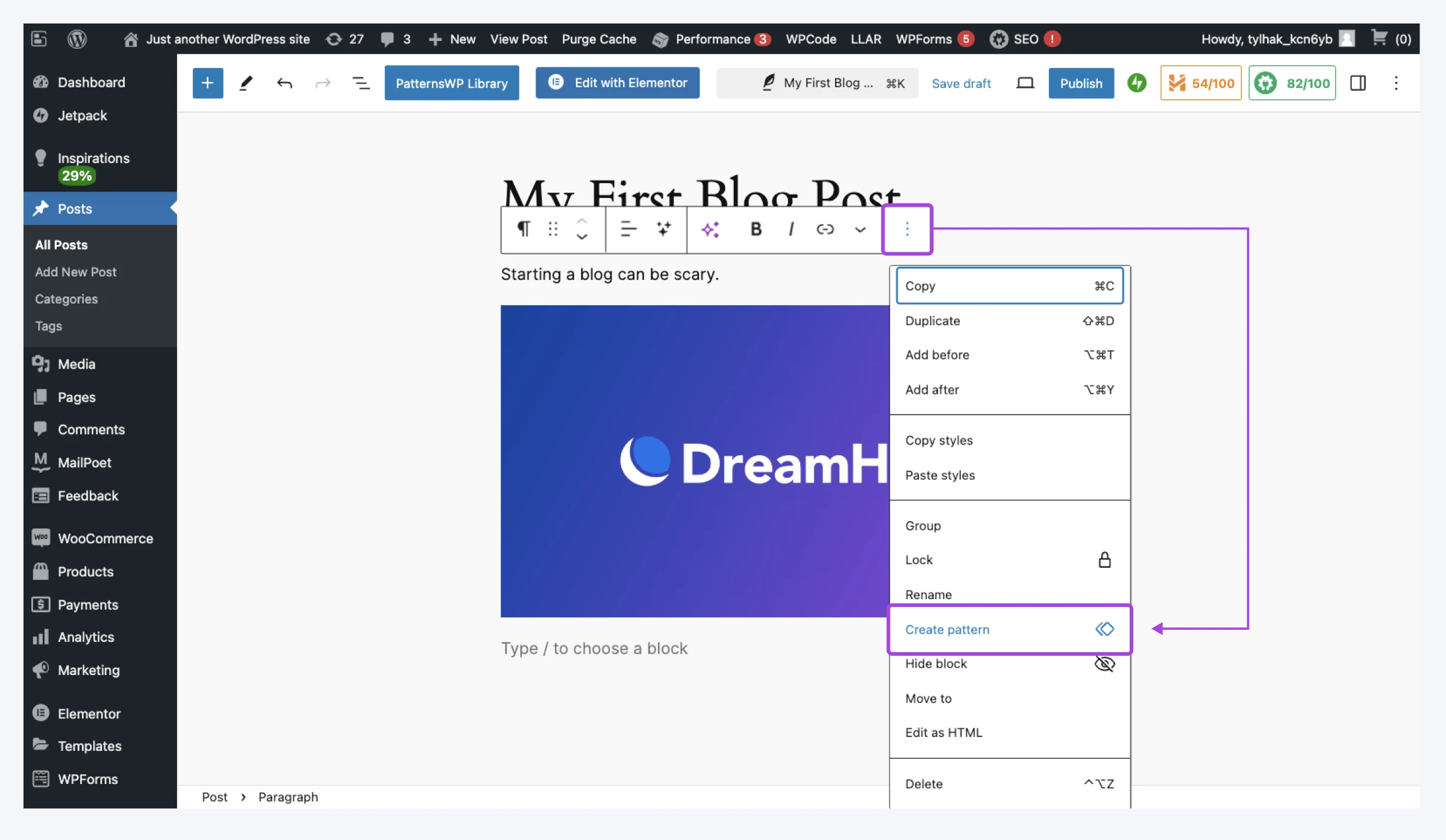
Pro tip: If you can’t easily see all the blocks you want to select, open the Document Overview tab to see the full list of elements. It’s the button with three offset horizontal lines in the top-left corner of the editor, next to the + block inserter.
Step 3: Save your block pattern
Having built your block pattern, you just need to save it to the WordPress pattern library.
You should see a pop-up box that asks you to name your block pattern and choose a category. Pattern categories help you to group together templates, such as all the patterns for a particular page.
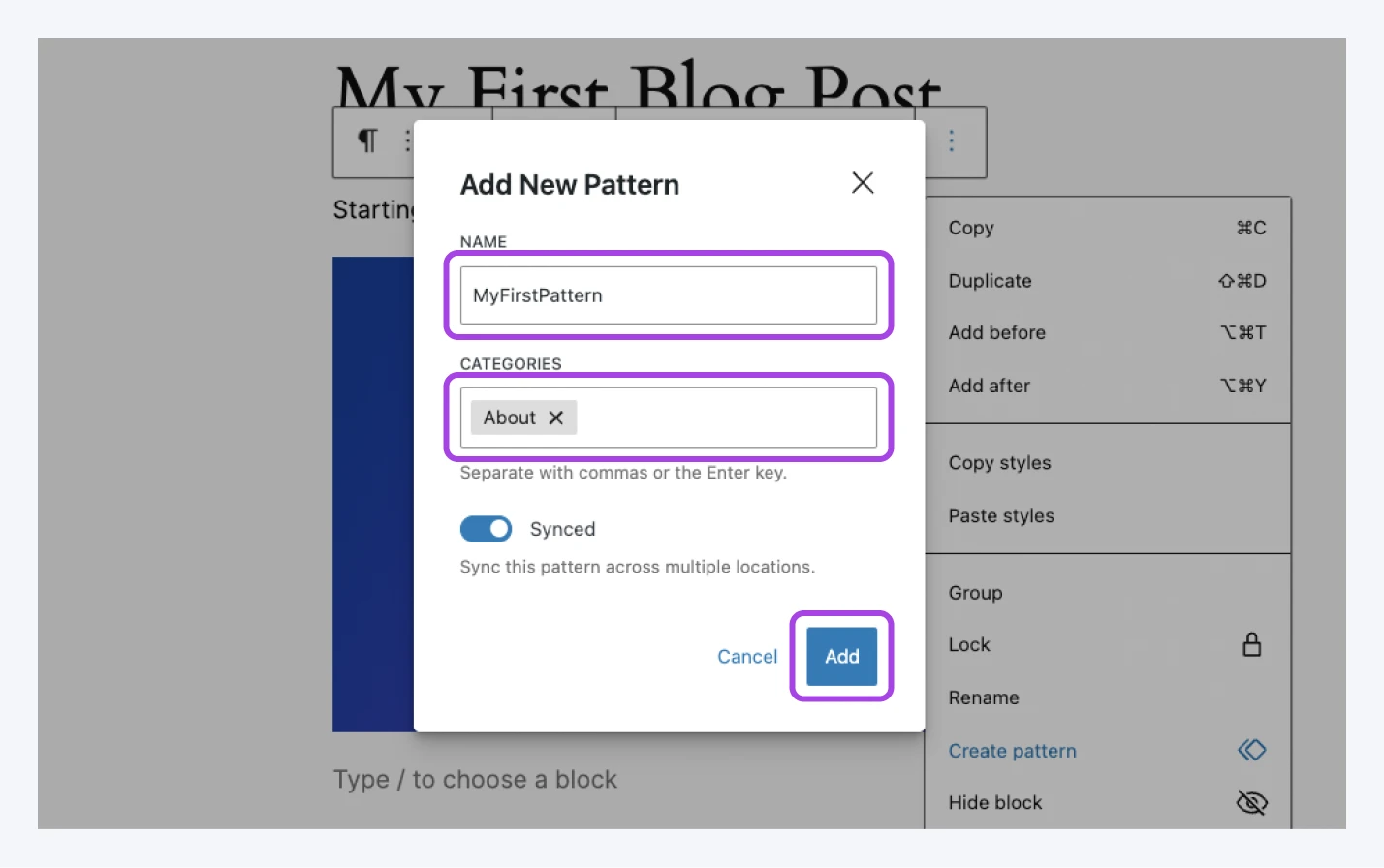
Finally, you have a big choice to make: to sync or not to sync (as Shakespeare would probably say).
Remember, synced block patterns are all linked. If you change one, all the other copies change. In contrast, unsynced block patterns are independent. (Been around WordPress a while? Synced patterns replaced the old “reusable blocks” feature: same idea, new name.)
Not sure which to pick? Here’s a quick decision guide:
- Choose synced for content that must stay identical everywhere and update in one move: a call-to-action banner, a legal disclaimer, or a contact block.
- Choose unsynced for starting-point layouts you’ll customize each time, like a testimonial section that needs different quotes on every page.
- Use a template part instead for site-structure areas like headers and footers. Template parts belong to your block theme’s templates, making them the right tool for elements that frame the whole site rather than fill individual pages.
Once you’ve made your decision, hit Create…and you’re done!
How to create block patterns in the Site Editor
The method above is probably the easiest way to create block patterns. But you can also build and save them via the WordPress Site Editor if you have a block-based theme.
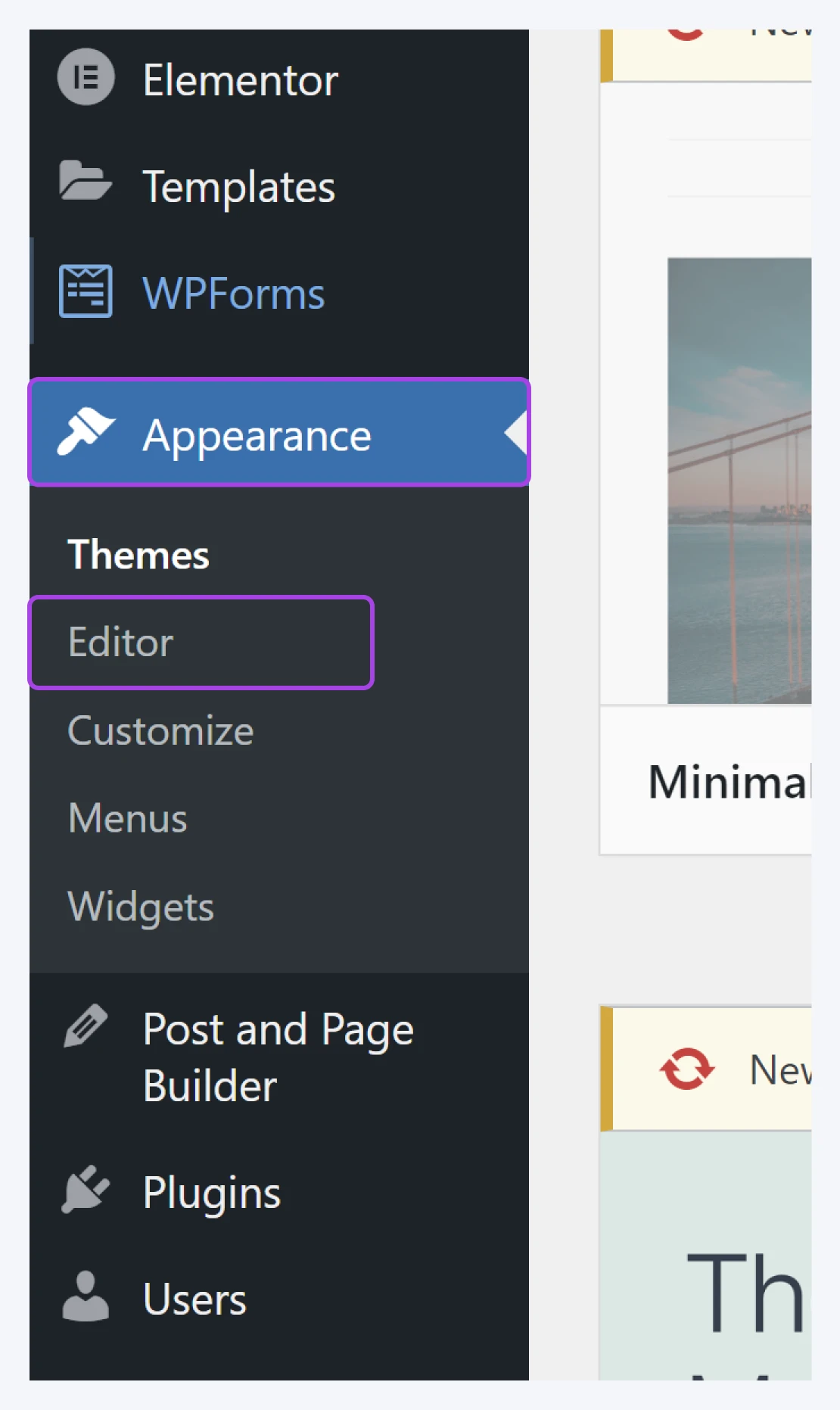
To do this, head over to Appearance > Editor in the WordPress admin panel.
Now, look to your left. See that sidebar? Click on Patterns, and you’ll see all the patterns you’ve collected so far, neatly organized into categories.
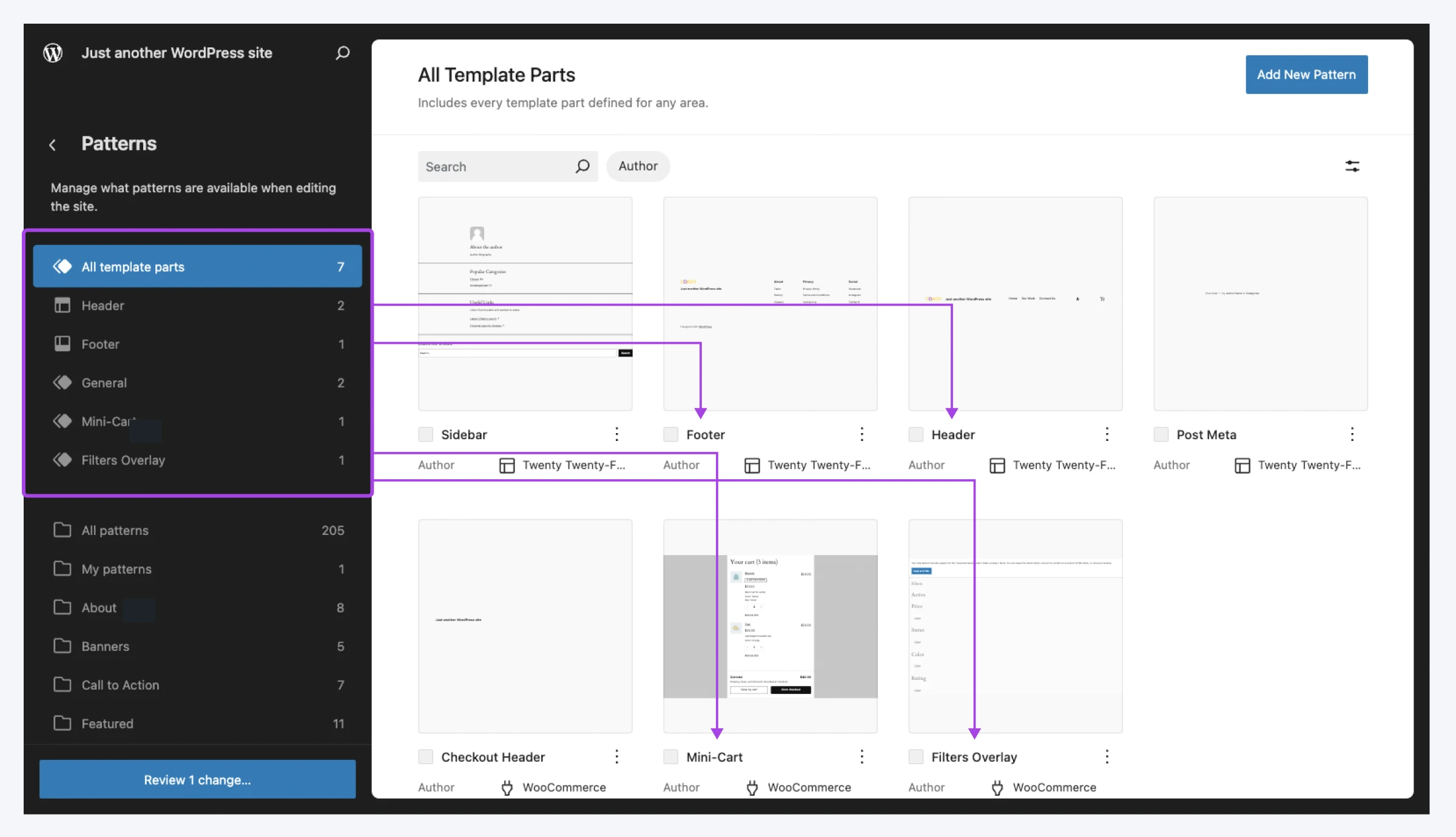
In the top right, you should see the Add New Pattern button. Hit that.
This will open the name and category pop-up. Fill in the details, and click Create.
WordPress will then open up a blank editor.
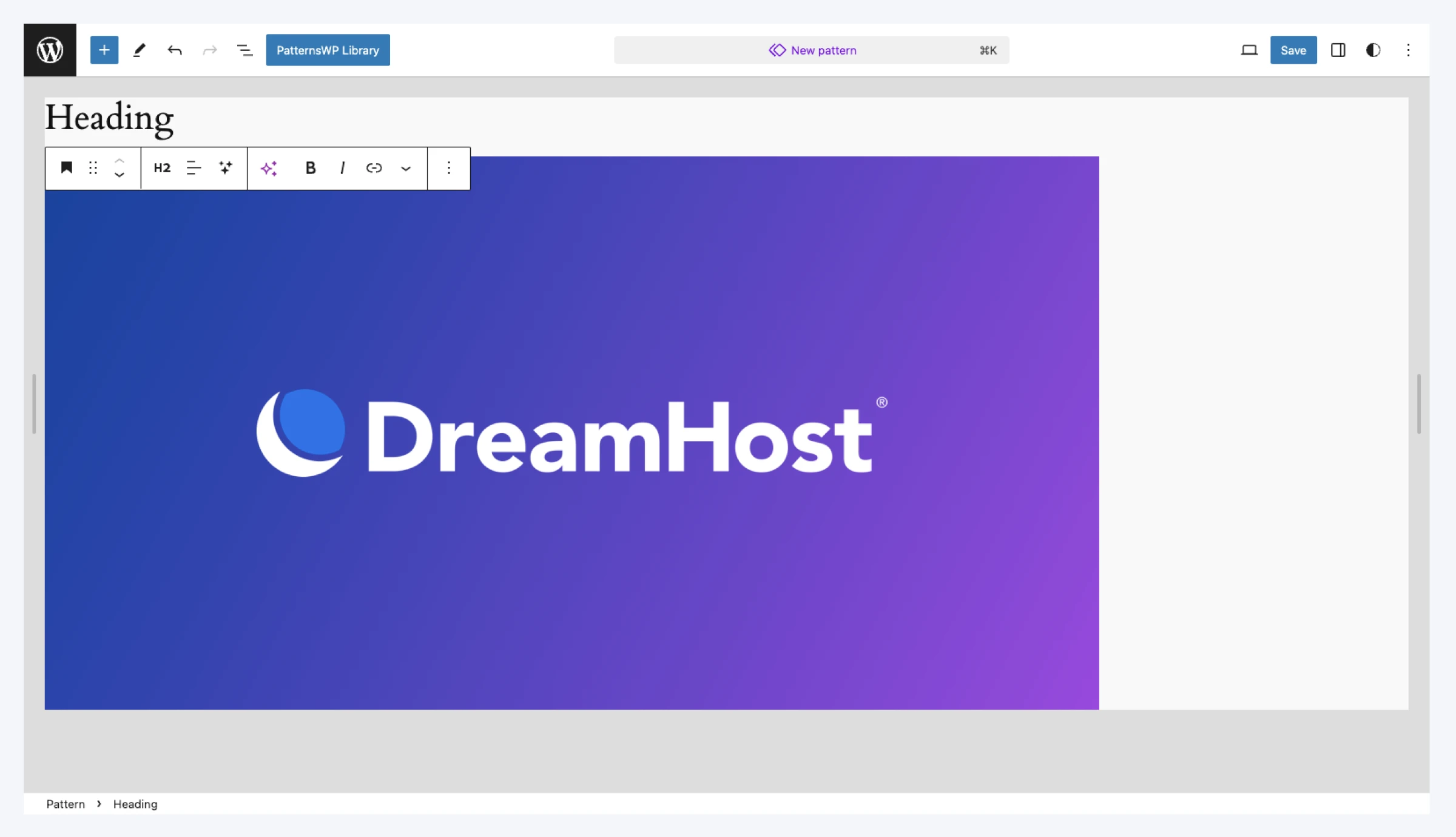
Simply choose and configure the blocks you want in your block pattern, and press Save in the top-right corner to finish.
How to register block patterns with code (for developers)
Building a theme or plugin? You can also register patterns programmatically so they ship with your project.
The simplest route is the theme patterns folder: drop a PHP file into /patterns/ in your theme, add a header comment with the pattern’s title and slug, and put the block markup below it. WordPress registers it automatically. For example, a file at patterns/cta.php:
<?php
/**
 * Title: Call to action
 * Slug: mytheme/cta
 * Categories: call-to-action
 */
?>
<!-- wp:paragraph -->
<p>Ready to get started? Contact us today.</p>
<!-- /wp:paragraph -->
Plugins (and classic themes) can use the register_block_pattern() function instead, passing a name, a title, and the block markup as the content argument. The WordPress Theme Handbook covers both approaches in detail.
Browsing in the Pattern Directory
If designing your own patterns sounds like hard work, we have good news to share.
As with themes, WordPress has a directory where people share block patterns.
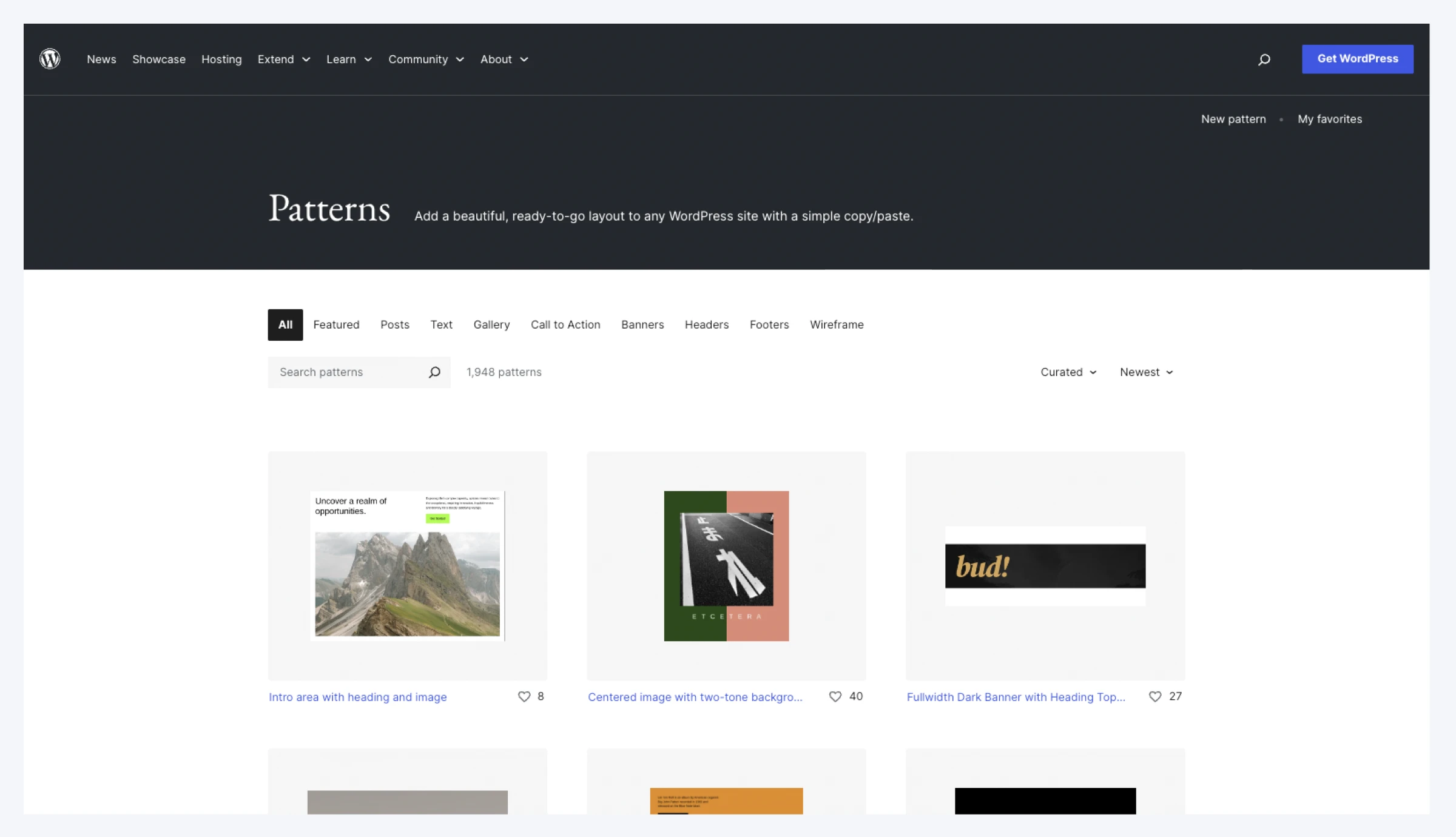
The WordPress Pattern Directory lists nearly 2,300 patterns (WordPress.org, August 2026), and they’re all completely free.
To grab these designs, head over to the Pattern Directory (available on both WordPress.org and .com) and find something you like. Tap on a design, and then click Copy. This will transfer the entire source code of the block pattern into your clipboard.
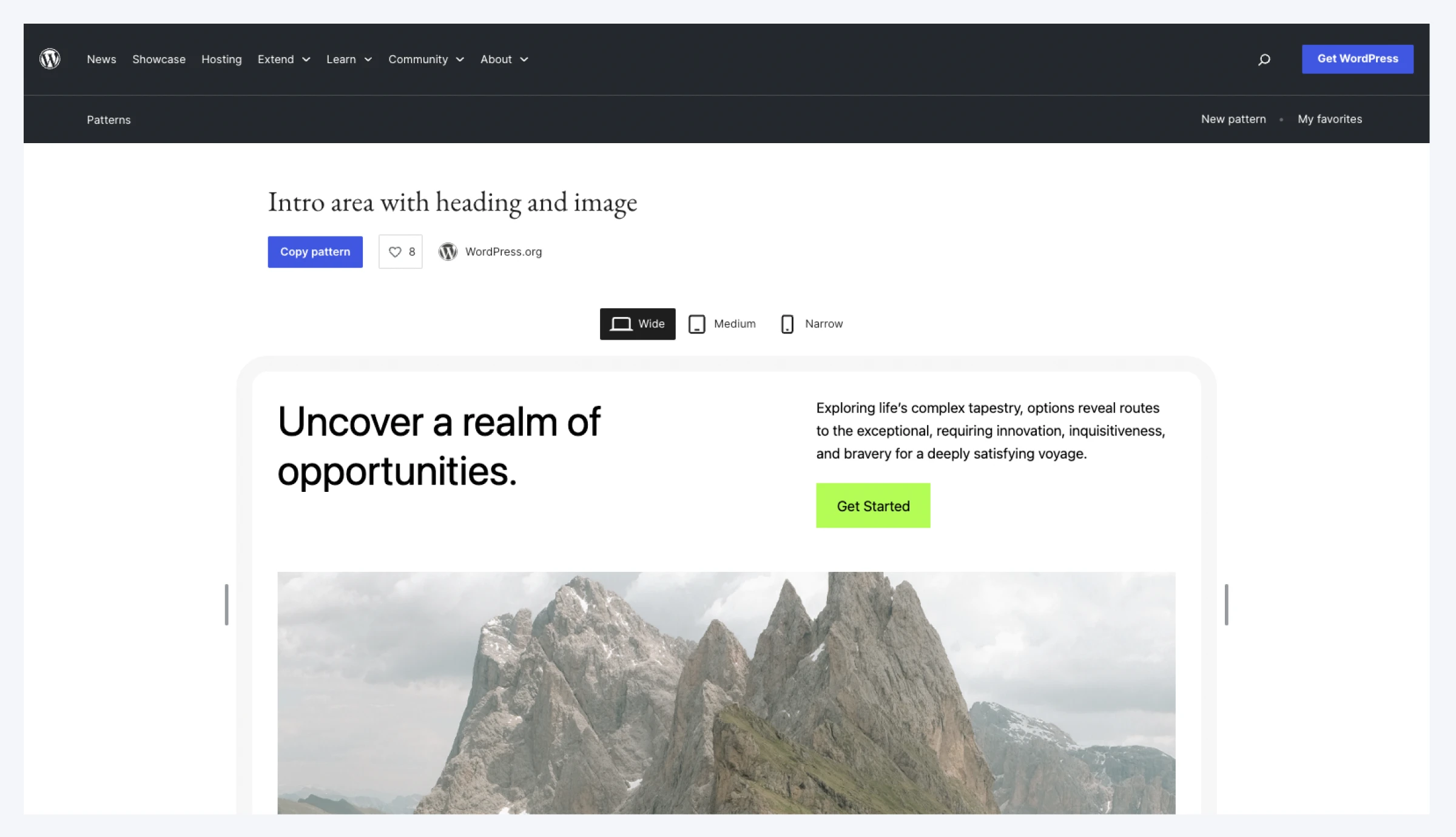
Then, return to the post or page you’re working on and paste in the code. Et voilà! You have a shiny new pattern.
Don’t panic if the pattern looks a little different on your site than it did in the directory. Patterns inherit your active theme’s colors, fonts, and spacing, so the preview shows the directory’s styling, not yours. The layout is what you’re copying; the look comes from your theme.
Pro tip: Images provided within block patterns created by other designers are typically referenced from external sources. It’s always possible that these links will break, so it’s usually a better idea to use your own images (or ones you have licensed).
One more shortcut worth knowing: several AI-assisted site builders and block plugins can now generate a starter layout from a written prompt. If you go that route, you can save the result as a pattern and customize it just like any other.
How to use your Gutenberg pattern library
If you have created and saved some patterns, you might be wondering how to use them.
To get started, open a draft post or page, and tap the + in the top-left corner to open the block inserter.
At first, you will be offered some blocks. Click on the Patterns tab at the top of this panel.
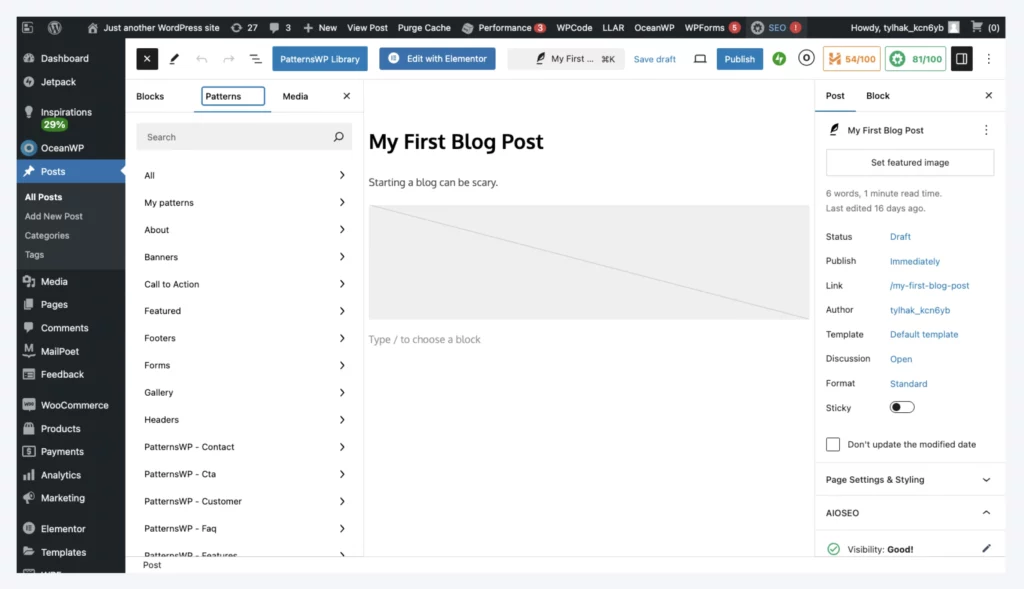
Here, you can check out all your saved block patterns or browse through them by category. Once you find the right one, click on the preview image to add it to your draft.
Remember that block patterns are just templates, so you can change up the content once you have inserted a saved pattern.
Pro tip: Certain plugins (such as page builders) add extra pre-made patterns or ready-made templates to your roster. Crocoblock’s JetPlugins, for example, come with ready-made templates you can adapt to your site.
How to manage your block patterns
If you’re using a block theme, you can manage the patterns you have created via the Site Editor. The relevant menu is under Appearance > Editor > Patterns.
In the main section on the right, tap the three dots next to any saved pattern to edit or delete it.
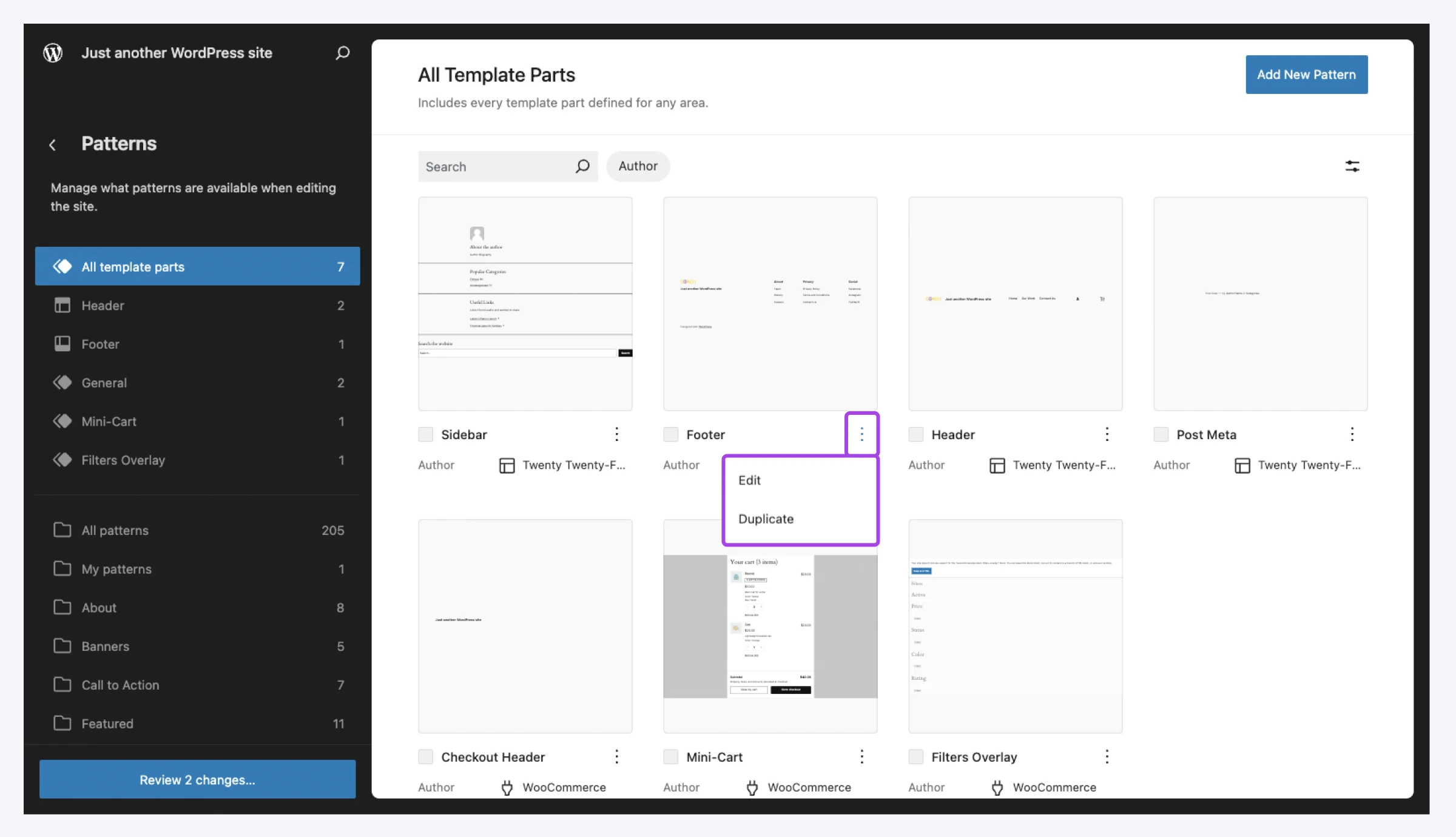
If you’re using a classic WordPress theme that doesn’t fully support full site editing, navigate to Appearance > Patterns to see a classic list of your saved patterns. Here you can edit, export, or delete them.
How to export and import patterns between sites
Since WordPress 6.4, you can move custom patterns between sites as JSON files. In the Patterns view, click the three dots next to the pattern you want to move and choose the export option to download a JSON file. On the destination site, open the same Patterns view, choose Import pattern from JSON, and upload the file. The pattern lands in that site’s library, ready to insert.
How to hide patterns you don’t want
Themes, plugins, and the Pattern Directory itself can clutter the inserter with patterns you’ll never touch. To stop WordPress from loading suggestions from the remote Pattern Directory, add this line to your theme’s functions.php file (or a small custom plugin):
add_filter( 'should_load_remote_block_patterns', '__return_false' );To also remove the patterns bundled with WordPress core, call remove_theme_support( 'core-block-patterns' ); from a function hooked to after_setup_theme. Your own saved patterns stay right where they are; this only clears out the built-in suggestions.
WordPress block pattern FAQs
What’s the difference between a synced and unsynced pattern?
A synced pattern stays linked across your site: edit one copy, and every copy updates. An unsynced pattern is a starting point — once inserted, each copy is independent, so you can change it without affecting the others.
Are block patterns free?
Yes. Every pattern in the WordPress Pattern Directory is free to copy and use, and creating your own patterns costs nothing because the feature is built into WordPress. Some themes and plugins also bundle their own free patterns.
Do block patterns work with any theme?
Yes, patterns work with both block themes and classic themes. Keep in mind that patterns inherit your active theme’s colors, fonts, and spacing, so the same pattern can look different from one theme to the next.
What’s the difference between a pattern and a template?
A pattern is a reusable group of blocks you insert into content, like a pricing section. A template defines the structure of a whole page type, like every blog post. Patterns fill in content; templates frame it.
What are patterns in WordPress used for?
Patterns handle the sections you’d otherwise rebuild on every page: a homepage hero, a testimonial row, a call to action, a footer. Insert one, swap in your text and images, and the section is done. If it’s synced, one edit updates every copy.
Need some help?
As you can see, block patterns aren’t super technical. They’re actually pretty easy to use.
That said, there’s still some design work involved. If you’re not confident in that area, we can help.
If you’d rather hire someone to handle the design, DreamHost’s paid design service can build the site for you. And if your layout is straightforward, the pattern tools above may be all you need.
And with DreamPress, DreamHost’s managed WordPress hosting, setting up and maintaining a handsome website is easier than ever. It’s built for speed (sites fully loaded in under a second in DreamHost’s August 2025 benchmarks) and backed by a high-availability, redundant architecture.
Sign up today to try it for yourself!

Unbeatable WordPress Hosting
Reliable, lightning-fast hosting solutions specifically optimized for WordPress.
See MoreThis page contains affiliate links. This means we may earn a commission if you purchase services through our link without any extra cost to you.