WordPress 7.0 is here, and it doesn’t look like the release everyone expected.
For most of the development cycle, version 7.0 was billed as the “collaboration release”: the update that would finally let multiple people edit the same post at the same time, Google Docs-style. Then, on May 8, 2026 — twelve days before launch — real-time collaboration was removed from the release.
What shipped instead is still one of the biggest WordPress updates in years: AI support built into core, the start of a long-overdue admin redesign, a genuinely useful way to compare revisions, and collaboration features that don’t need anyone else online at the same time.
Here’s what got cut, everything that made it into WordPress 7.0, and what you should do before you hit that update button.
For a look back at the milestones that shaped today’s editor, revisit what changed in WordPress 6.1 and WordPress 6.2.
What Is WordPress 7.0?
WordPress 7.0 “Armstrong,” released May 20, 2026, is the largest WordPress core update since Gutenberg. It brings a provider-agnostic AI Client and Abilities API into core, starts a full admin redesign with an admin-wide command palette, adds Visual Revisions to the editor, and gives Notes a Suggestions mode — while real-time collaboration was postponed.
Like every major WordPress release, 7.0 is named after a jazz musician — this time Louis “Satchmo” Armstrong, widely considered the first great jazz soloist. According to the official release announcement, more than 875 contributors from around the world worked on Armstrong, including 200+ first-time contributors, and it launched with full translations in 70+ locales.
You can update from your dashboard under Dashboard > Updates, or download it directly from WordPress.org. (Before you do, read the update checklist at the end of this post — 7.0 also raises the minimum PHP requirement.)
What Happened to Real-Time Collaboration?
Real-time collaboration didn’t ship in WordPress 7.0. WordPress co-founder Matt Mullenweg made the call on May 8, 2026, saying he was “not confident the current approach is robust enough to include in Core at this time.”
The announcement cited concerns around surface area, race conditions, server load, memory efficiency, and recurring bugs found through fuzz testing. In plain English: simultaneous editing worked in demos, but under real-world conditions — multiple users, slow connections, busy servers — it wasn’t reliable enough to ship to the just-over-41% of the web that runs WordPress (per W3Techs, 2026).
That’s a disappointment if you were waiting for Google Docs-style editing, but it’s the right kind of disappointment. Collaborative editing leans on server infrastructure far more than a typical WordPress feature, and shipping it half-baked would have meant broken drafts and lost work on millions of sites.
The feature isn’t dead. Per the Make WordPress Core announcement, you can still test real-time collaboration through the Gutenberg plugin, and the team plans to share a roadmap for broader testing and continued iteration ahead of a future release.
💡What this means for you: Nothing changes in how you edit today. If two people open the same post, WordPress still uses post locking: one editor at a time. Watch for real-time collaboration to return in a later release once it’s stable.
AI Lands in Core: The AI Client, Abilities API, and Connectors
The biggest addition that did ship: WordPress 7.0 gives the platform an official, standardized way to talk to AI.
Three pieces work together:
- The AI Client: A provider-agnostic interface that lets WordPress communicate with any generative AI model. Plugin developers write against one API instead of building separate integrations for each provider.
- The Abilities API: Introduced in WordPress 6.9 and expanded in 7.0, this is a standardized way for plugins and services to describe what they can do in a format AI systems understand. Version 7.0 adds core abilities for common tasks and a client-side JavaScript package (
@wordpress/core-abilities) that discovers server-registered abilities automatically. - The Connectors screen: A new page under Settings > Connectors gives you one central place to add, update, and remove AI connections, with Anthropic, Google, and OpenAI supported as default providers, per the WordPress 7.0 Field Guide. Your site connects to the AI provider you choose — nothing is switched on by default.
On top of those foundations, a new official WordPress AI plugin adds opt-in, experimental features like generating excerpts and titles, suggesting alt text, and creating or editing images.
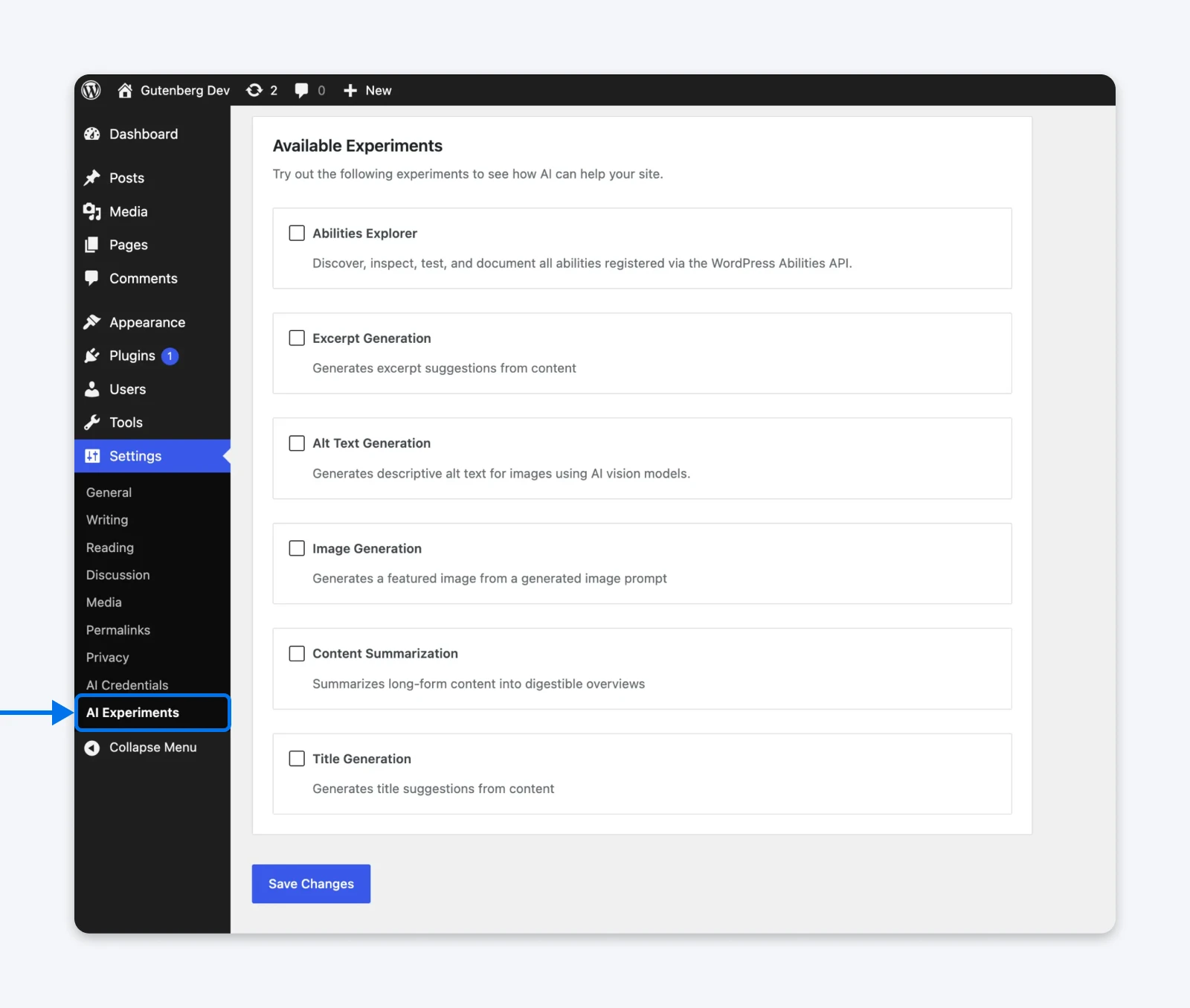
💡What this means for you: If you want AI in your workflow, it now works like the rest of WordPress — one standard, many providers, your choice of model. Expect a wave of AI-powered plugins that can finally work together instead of each shipping its own separate integration.
Notes Gets More Powerful: Email Notifications and Suggestions Mode
With real-time collaboration postponed, Notes is the centerpiece of WordPress collaboration, and 7.0 adds two upgrades that make it more useful: email notifications and a Suggestions mode. Notes itself arrived in WordPress 6.9: block-level comments, with @mentions, that you can reply to and resolve right inside the editor.
Email Notifications for Mentions
In 6.9, @mentioning a teammate notified them inside WordPress — useful only if they happened to be logged in. WordPress 7.0 adds email notifications, so the person you mention finds out even when they’re not in the dashboard. No more switching to Slack to tag someone about a specific change.
Suggestions Mode
Reviewers can propose edits tied to specific content within a block. The original text stays untouched until the author accepts or rejects the change with a click. It’s the same workflow editors rely on in Google Docs, now native to WordPress.
💡What this means for you: Feedback stays in context instead of scattering across email threads and chat messages. For most editorial teams, async review like this — not simultaneous typing — is the collaboration that actually happens day to day.
Visual Revisions: See Exactly What Changed
WordPress 7.0 adds Visual Revisions: a comparison view in the editor with a slider bar, color-coded markers for what was added, removed, or restyled, and navigation that jumps you to each change. WordPress has kept revisions forever, but until now, comparing them meant squinting at a wall of highlighted HTML.
💡What this means for you: Recovering from an overzealous edit (yours or a teammate’s) no longer requires reading raw markup. You can see the page as it looked at each save and restore the right version with confidence.
The Admin Gets Its First Real Refresh Since 2013
WordPress 7.0 begins modernizing the admin in earnest — the dashboard’s first major visual overhaul since 2013:
A Modern Look and Smoother Navigation
A new default “Modern” color scheme rolls out across the dashboard, along with refreshed buttons, form inputs, notices, and cards built on a unified design system. Screen-to-screen navigation now uses view transitions, so you move between admin pages without a jarring full-page reload.
A Command Palette Everywhere
The command palette — previously limited to the editor — is now available across the whole admin. Press ⌘K (Mac) or Ctrl+K (Windows) from any screen to jump to pages, settings, or actions without hunting through menus.
A Dedicated Fonts Screen
Font management now has its own home at Appearance > Fonts, where you can manage installed fonts and upload new ones. It works with block, hybrid, and classic themes alike.
Accessibility Baked In
WordPress’s accessibility standards target WCAG 2.2 level AA, and the visual refresh is built to preserve color contrast, keyboard navigation, and screen reader support through the changes.
💡What this means for you: A cleaner, faster-feeling admin that’s easier to navigate — and if you manage sites for clients, a dashboard that finally looks like it was designed this decade.
New Blocks and Editor Upgrades
WordPress 7.0 keeps chipping away at the “install a plugin for that” problem with new native blocks and long-requested editor controls:
- Breadcrumbs block: Native breadcrumb navigation that reflects your site’s hierarchy — no SEO plugin required.
- Icon block: Insert SVG icons from a curated collection directly in the editor.
- Gallery lightbox slideshow: Gallery images can open in a lightbox visitors can flip through as a slideshow.
- Video backgrounds in Cover blocks: Embed videos as full section backgrounds.
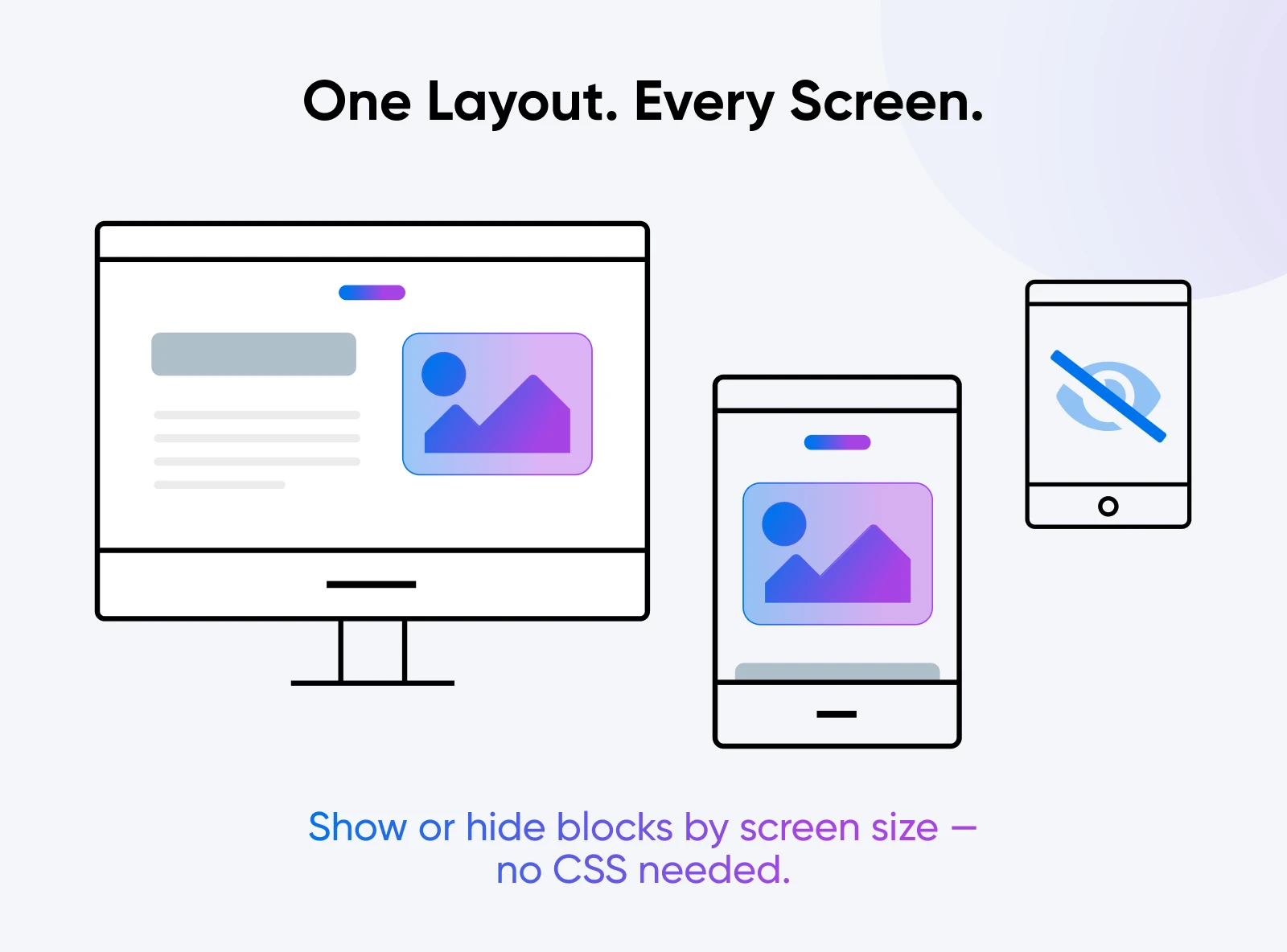
- Block visibility by device: Hide or show any block on mobile, tablet, or desktop from the block settings — no CSS hacks needed.
- Per-block custom CSS: Apply custom CSS to an individual block instance right from the editor.
A note on expectations: several blocks previewed during the 7.0 cycle — Tabs, Slider, Dialog, Playlist, and Table of Contents — did not ship in core with this release. Some remain available through the Gutenberg plugin while development continues.
💡What this means for you: Fewer plugins for common layout needs, which usually means a faster site and fewer conflicts to debug.
PHP 7.4 Is Now the Minimum
WordPress 7.0 raises the minimum supported PHP version from 7.2.24 to PHP 7.4.0, dropping support for PHP 7.2 and 7.3.
If your site runs PHP 7.2 or 7.3, it stays on the WordPress 6.9 branch: you’ll keep getting security updates, but no new features until you upgrade PHP. Per the Make WordPress Core announcement (January 2026), usage of those versions has fallen below 4% of monitored WordPress installs — under the project’s traditional 5% threshold for retiring a PHP version.
💡What this means for you: Check your PHP version in your hosting control panel before updating. Upgrade to at least PHP 7.4 first — ideally a currently supported PHP 8.x release, which is faster and better supported — then test your site and update WordPress.
“When upgrading, it’s always a good idea to verify how your site looks and works, as it’s not only fatal failures you may see. You may notice some styling missing, some forms may stop working, and so on. I recommend testing your site’s main functionalities to be safe!” – Alex Granata, International WordPress Support Specialist
Under the Hood for Developers
A significant share of Armstrong is invisible to site owners but matters a lot if you build on WordPress:
- Server-side block registration: Blocks and patterns can now be created directly in PHP, with an
autoRegisteroption — no JavaScript build step required for simple blocks. - Enforced iframed editor: The editor runs in an iframe when all blocks use Block API version 3 or higher, improving style isolation between theme and editor.
- A more extensible Site Editor: The new
@wordpress/bootpackage lets plugins build custom site-editor pages, and the Interactivity API gains awatch()function for reacting to state changes. - Abilities everywhere: The server- and client-side Abilities APIs give plugins a standard way to expose functionality to AI agents and to each other.
The full changelog — 420+ enhancements and fixes — is in the WordPress 7.0 Field Guide.
How To Update to WordPress 7.0 Safely
Armstrong is a stable release, but it’s a big one: new minimum PHP, a redesigned admin, and editor changes. Five steps keep the update boring (in the good way):
- Back up first. Take a full backup — files and database — before any major update. Your host’s backup tool or a backup plugin both work; the point is having a restore point you’ve verified.
- Check your PHP version. You need at least PHP 7.4, and a supported PHP 8.x release is the better target. Most hosting panels show this in one click.
- Update themes and plugins before core. Developers have had since the February beta to ship 7.0 compatibility. Grab those updates first so everything is current when core changes underneath it.
- Test on staging if you can. A staging copy lets you catch a misbehaving plugin before your visitors do — especially worth it for WooCommerce stores and membership sites.
- Update and click through your site. After updating, check your key pages, forms, and checkout flow. Styling glitches and broken forms are more common than fatal errors.
WordPress 7.0 FAQ
When was WordPress 7.0 released?
WordPress 7.0 “Armstrong” was released on May 20, 2026, following Beta 1 on February 19 and Release Candidate 1 on March 19. It’s available now via Dashboard > Updates or as a download from WordPress.org.
Does WordPress 7.0 include real-time collaboration?
No. Real-time collaboration was removed from the release on May 8, 2026, over stability concerns including race conditions and server load. It remains testable in the Gutenberg plugin and is planned for a future release.
What are the AI features in WordPress 7.0?
Core gains a provider-agnostic AI Client, an expanded Abilities API, and a Settings > Connectors screen supporting Anthropic, Google, and OpenAI as default providers. Optional features like alt-text suggestions and excerpt generation ship separately in an official AI plugin, and everything is opt-in.
What PHP version does WordPress 7.0 require?
PHP 7.4.0 is the new minimum; support for PHP 7.2 and 7.3 was dropped. Sites on older PHP stay on the WordPress 6.9 branch with security updates only. For performance and support, a current PHP 8.x version is the better choice.
Will my plugins and theme still work after updating?
Most will. Major releases go through months of betas, and plugin developers had since February 2026 to test against 7.0. Update your plugins and theme before updating core, and test on a staging site if you run anything business-critical.
Why is WordPress 7.0 called “Armstrong”?
Every major WordPress release is named for a jazz musician. Version 7.0 honors Louis “Satchmo” Armstrong, the trumpeter and singer who turned jazz into a soloist’s art form.
What Does WordPress 7.0 Mean for Your Website?
Even without its headline feature, Armstrong resets where WordPress is headed:
- For content teams: Notes with Suggestions mode and email notifications brings editorial review inside WordPress — no more email ping-pong.
- For agencies: Visual Revisions and a modernized admin mean you can show a client exactly what changed, and when.
- For developers: Standardized AI integration, PHP-first block registration, and a more extensible Site Editor.
- For site owners: New blocks and controls that replace plugins, and AI that’s standard but strictly opt-in.
The collaboration story isn’t over; it’s just been split in two. The async half (Notes, Suggestions, Visual Revisions) shipped and works today. The real-time half goes back in the oven until it’s dependable. Meanwhile, the AI foundations in 7.0 are what the next generation of plugins for AI content creation will build on.
Update when you’ve run through the checklist above. And if you’d rather someone else handle the updating, backups, and PHP housekeeping, that’s exactly what managed WordPress hosting is for.

Unbeatable WordPress Hosting
Reliable, lightning-fast hosting solutions specifically optimized for WordPress.
See More