
“It’s July. What’s the Christmas tree doing in the living room?”
You’ve spent hours decorating the Christmas tree and basking it in twinkling lights.
But that was back in December.
Life got busy, and before you knew it, summer rolled in. And now, the poor tree droops in the corner, shedding needles — a dusty fire hazard more than a festive centerpiece.
That’s what happens with abandoned WordPress plugins.
We install them for a reason, but over time, they’re forgotten. Left unchecked, abandoned plugins become security risks, exposing your site to potential threats.
Let’s spot them and remove them.
What’s an Abandoned Plugin?
Oh yes, first, we still need to understand what an abandoned plugin is, exactly.
An abandoned plugin is a WordPress plugin that its developer no longer maintains or updates. There’s no official cutoff, but once a plugin falls a year or more behind, the WordPress.org directory warns that it “hasn’t been tested with the latest 3 major releases of WordPress” — and unmaintained plugins can eventually be closed and removed entirely.
Such plugins can become incompatible with the latest WordPress versions, leading to potential security vulnerabilities and functionality issues.
Why Abandoned Plugins Are a Big Problem
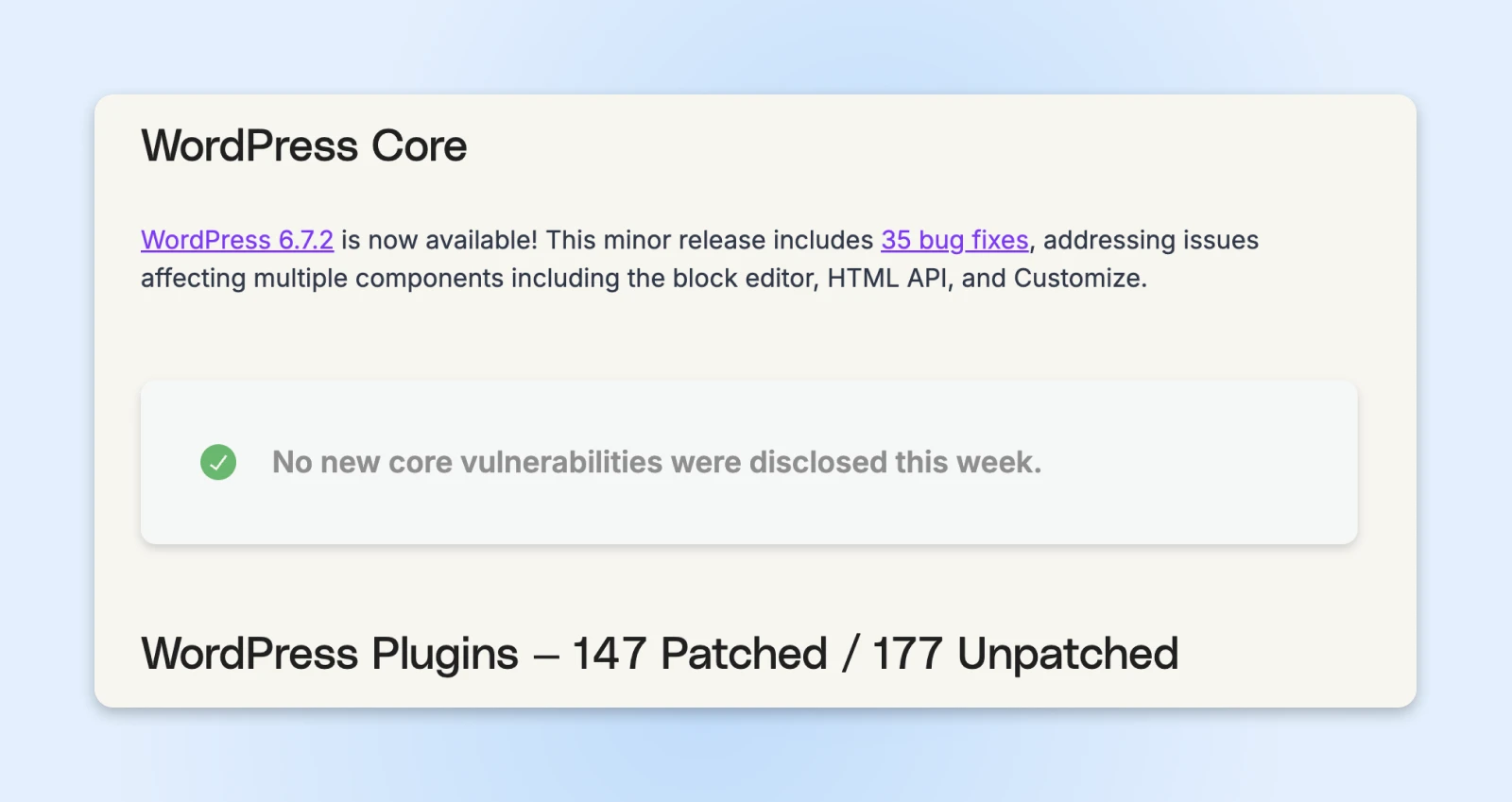
Abandoned plugins are like ticking time bombs for your WordPress site. In 2025, plugins accounted for 91% of the 11,334 new vulnerabilities reported across the WordPress ecosystem, per Patchstack’s State of WordPress Security in 2026 — themes accounted for nearly all the remainder, with just six low-priority issues in the WordPress core itself. That means nearly every security issue affecting WordPress sites comes from plugins and themes — not the core software.
The WordPress vulnerability report from SolidWP, a Liquid Web brand, has regular updates on new WordPress ecosystem vulnerabilities. You’ll almost always see new vulnerabilities for plugins but rarely for the WordPress core.
That’s thousands of business owners who dealt with:
- Lost revenue during site downtime.
- Compromised customer data.
- Damaged reputation and lost trust.
- Google blacklisting their site as “potentially harmful.”
- Hours (or days) spent cleaning up the mess.
When developers abandon their plugins, they stop patching security holes — creating perfect entry points for hackers.
Think about it:
- No security updates = exposing your site to known vulnerabilities.
- No compatibility testing with new WordPress versions = broken functionality.
- No bug fixes = unexpected behavior that can compromise your site.
The scale is hard to overstate: in one October 2025 campaign, Wordfence’s firewall blocked more than 8.75 million exploit attempts in just two days — all aimed at plugin vulnerabilities that had been disclosed (and patched) a full year earlier. Sites still running the old versions were the targets. And abandoned plugins are the worst case: with those, no patch will ever come.
But let’s suppose you got lucky, and the abandoned plugin you have is completely safe to use.
We still have to deal with performance issues.
Every new WordPress update improves speed, reduces redundancies in the system, and makes the overall website feel snappy while adding more features.
But if the abandoned plugin bogs the website down, these speed improvements might never get noticed, and it’d be easy to think that WordPress is the culprit here (even though it never is).
There’s also a strong possibility that the plugin causes a conflict with a newer version of WordPress and you’re left with a broken website.
Unfortunately, when that happens with abandoned plugins, you’re completely on your own. No developer to answer questions, no community support, no documentation updates. When Patchstack reported 827 vulnerable plugins and themes to the WordPress team in 2023, 481 of them were simply removed from the WordPress.org repository because they’d been abandoned — no fix ever came.
This leaves website owners unknowingly running outdated, unpatched software that hackers can exploit.
Put simply — move away from such plugins as soon as possible.
How To Spot Abandoned Plugins
It’s time to pick up your metaphorical magnifying glasses, and begin searching for clues that reveal plugins that are gathering dust in your WordPress dashboard.
Here are some things that help identify if an abandoned plugin is lying around on our website.
1. The “Last Updated” Date
The most obvious red flag is hiding in plain sight.
In your WordPress dashboard, go to Plugins > Installed Plugins. (Our screenshots predate the redesigned admin that shipped with WordPress 7.0, so your dashboard may look a little sleeker — the steps are the same.)
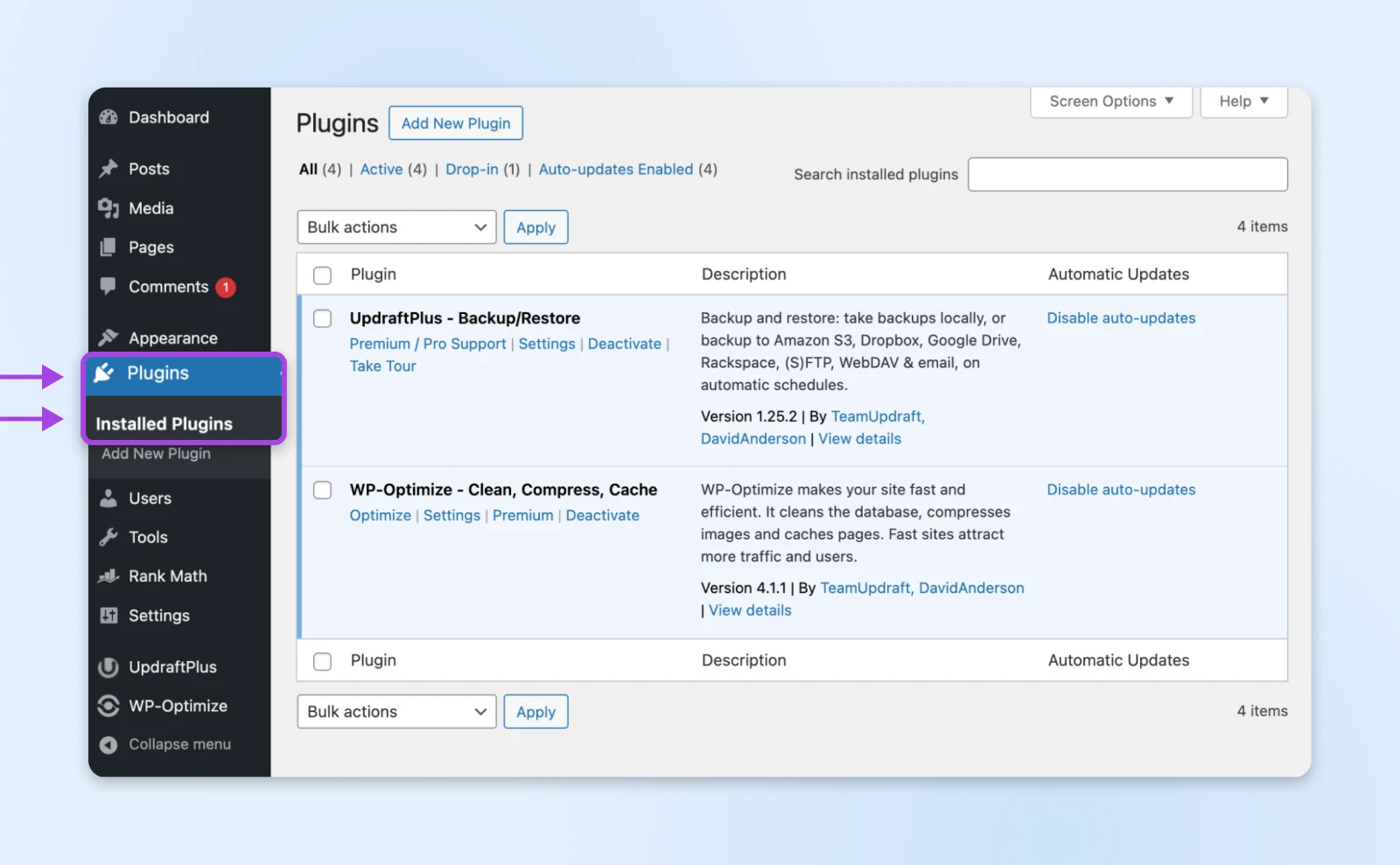
Then click View Details to open the plugin details where you’ll see the “Last Updated” date.
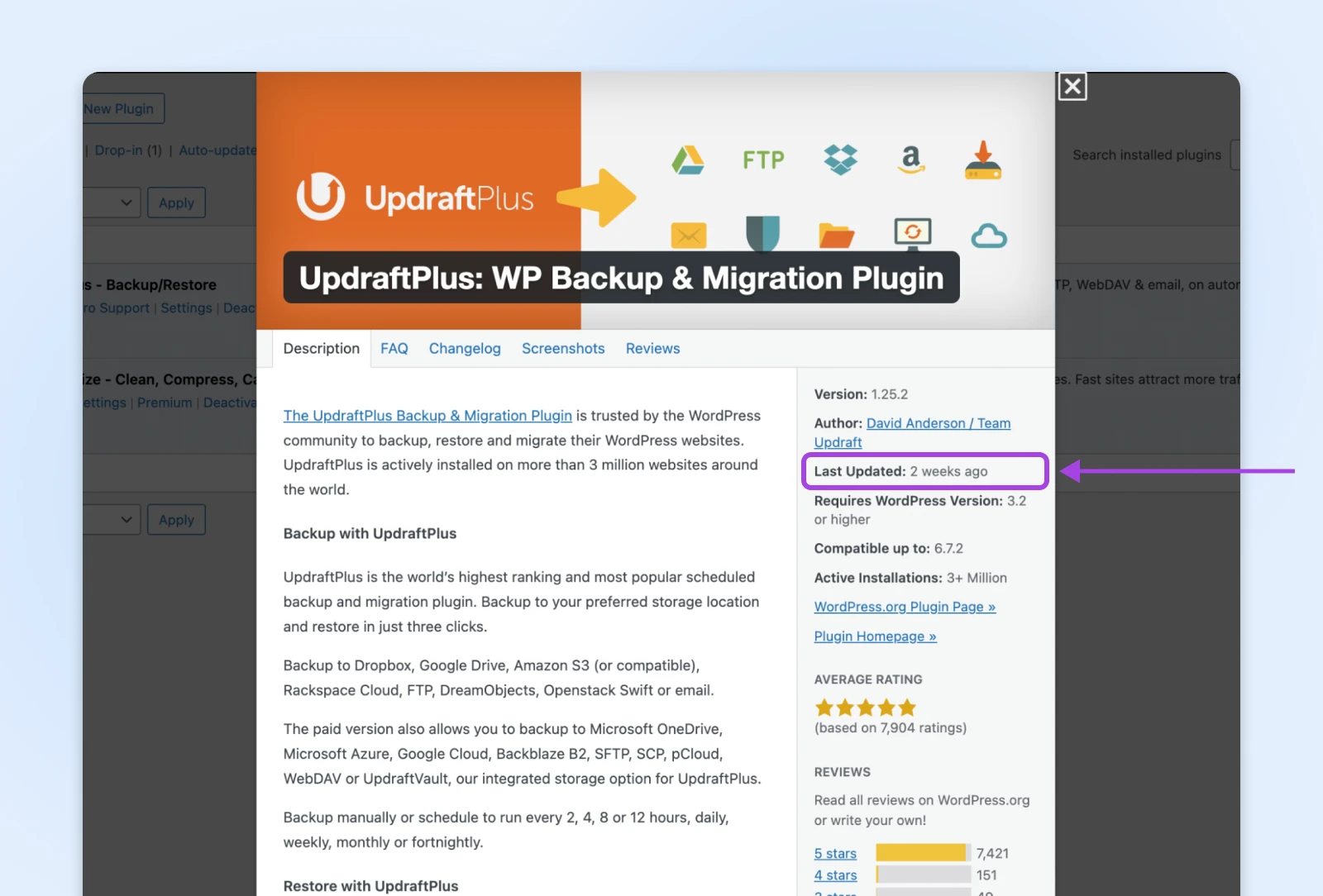
UpdraftPlus is a popular plugin and gets updated quite regularly — when we took this screenshot, it had been updated just two weeks earlier — so it’s safe to retain since there’s active development.
But you could have an older plugin still on your website like the one below, which hadn’t been updated in NINE years when we captured it:
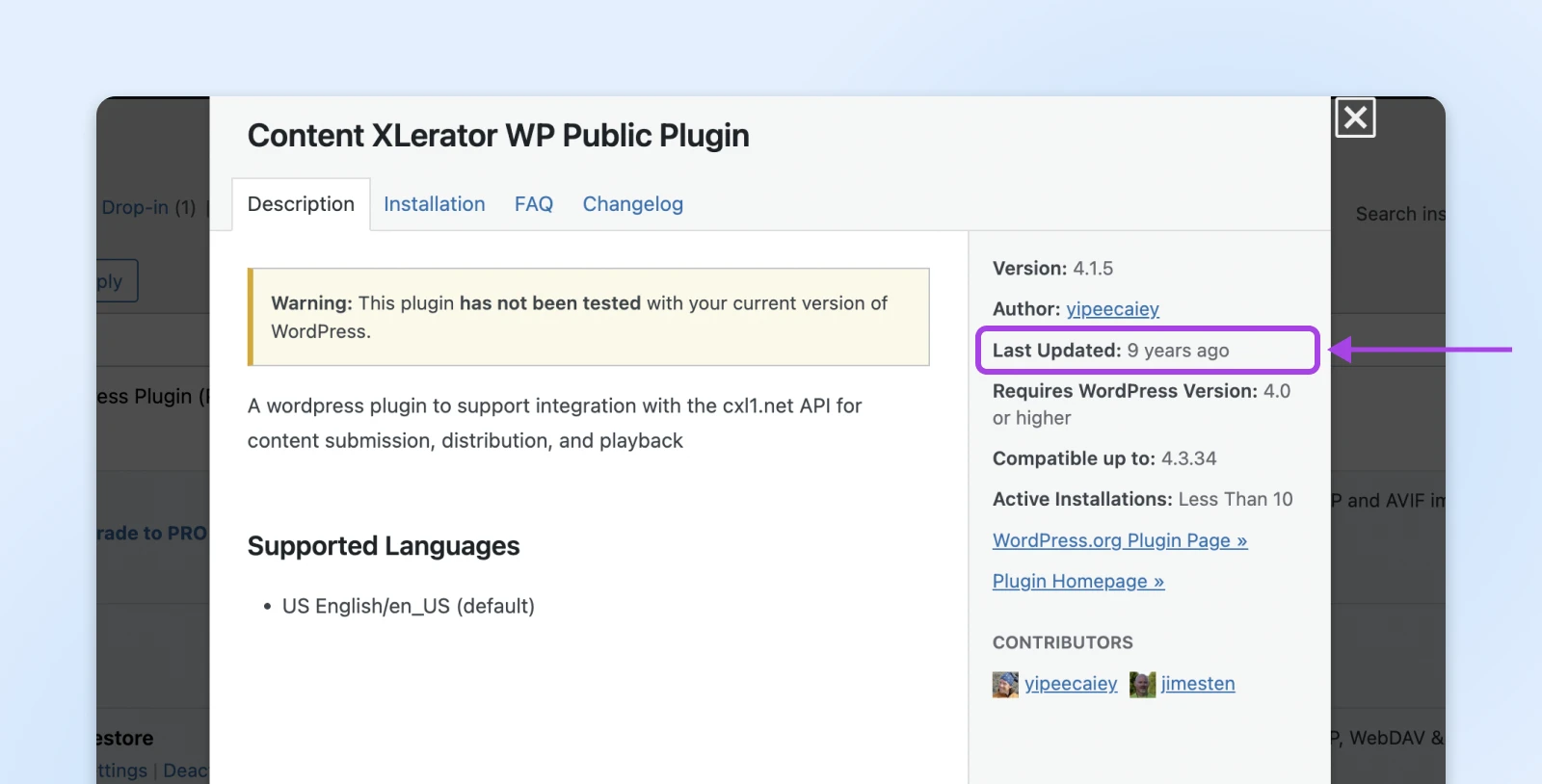
Any plugin not updated in over a year deserves your attention. Once it’s far enough behind to trigger the directory’s “hasn’t been tested with the latest 3 major releases of WordPress” warning, treat it as abandoned and plan its replacement.
If there are pages that still use functionality of the plugin (maybe it’s an old form plugin and you still have some forms), replace the functionality with newer plugins as quickly as you can.
2. Check Updated Date in the Plugin Search
Suppose you’re looking to install your next WordPress plugin. You want to check the last updated dates in the search results as well.
Let’s take the same abandoned plugin from the above example here. If you go to Plugins > Add New Plugins and search for it, you’ll see the below screen:
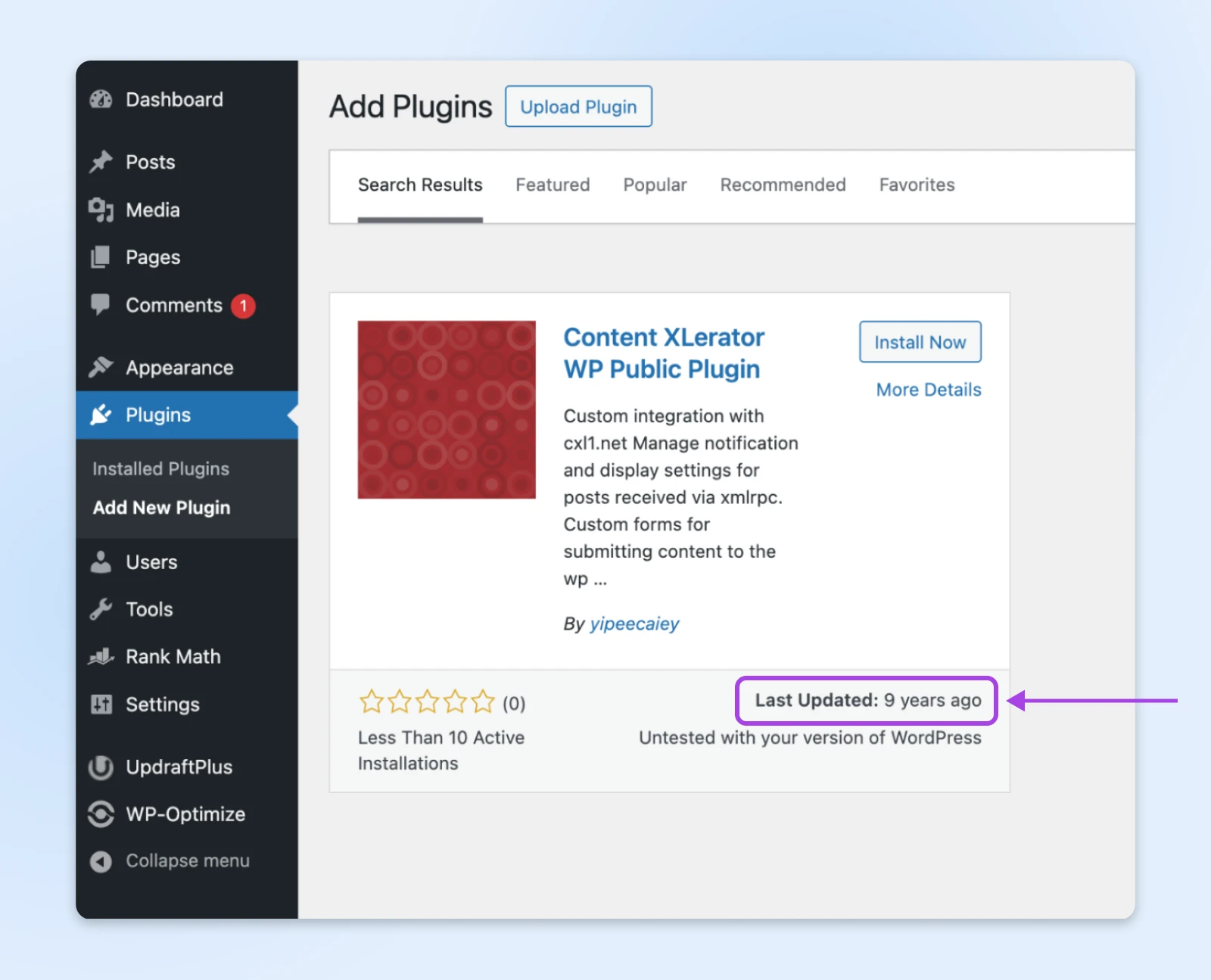
Notice that it displays the last updated date right on the search results so you can choose whether or not to install the plugin.
If you’re not on your WordPress dashboard, but are looking up plugins on the WordPress plugin directory, you can click through any plugin and see the version and “Last updated” date on the information panel on the right.
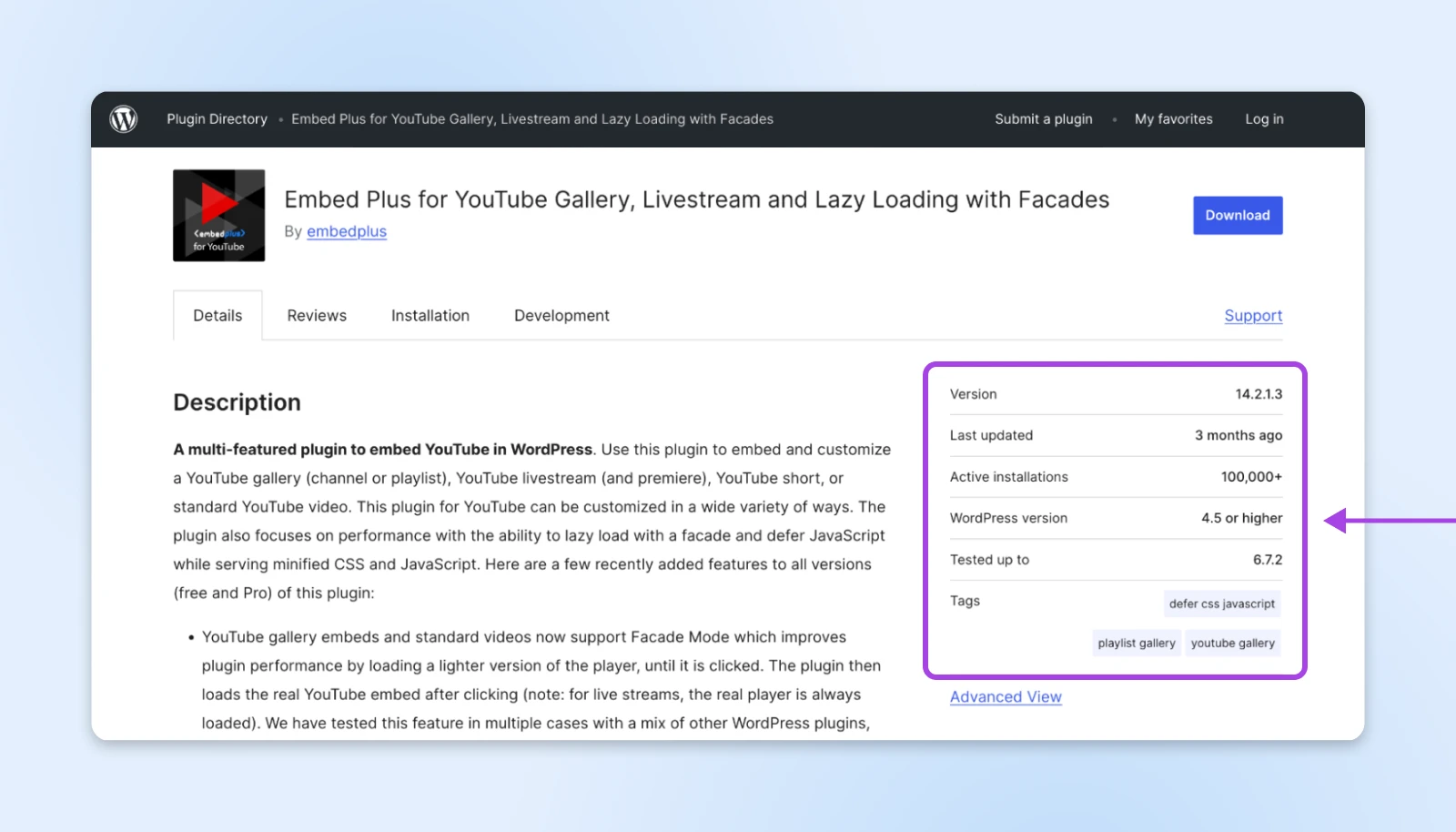
That should give you enough information to decide if the plugin is worth considering or not.
3. Look at Support Tickets
Suppose you see a plugin that was updated recently but only has a few active installs. How can you be sure if the plugin is actively being developed?
The support tickets can show a clear picture.
On the WordPress plugins directory page, go to any plugin you’re considering, and click the Support link right below the download button.
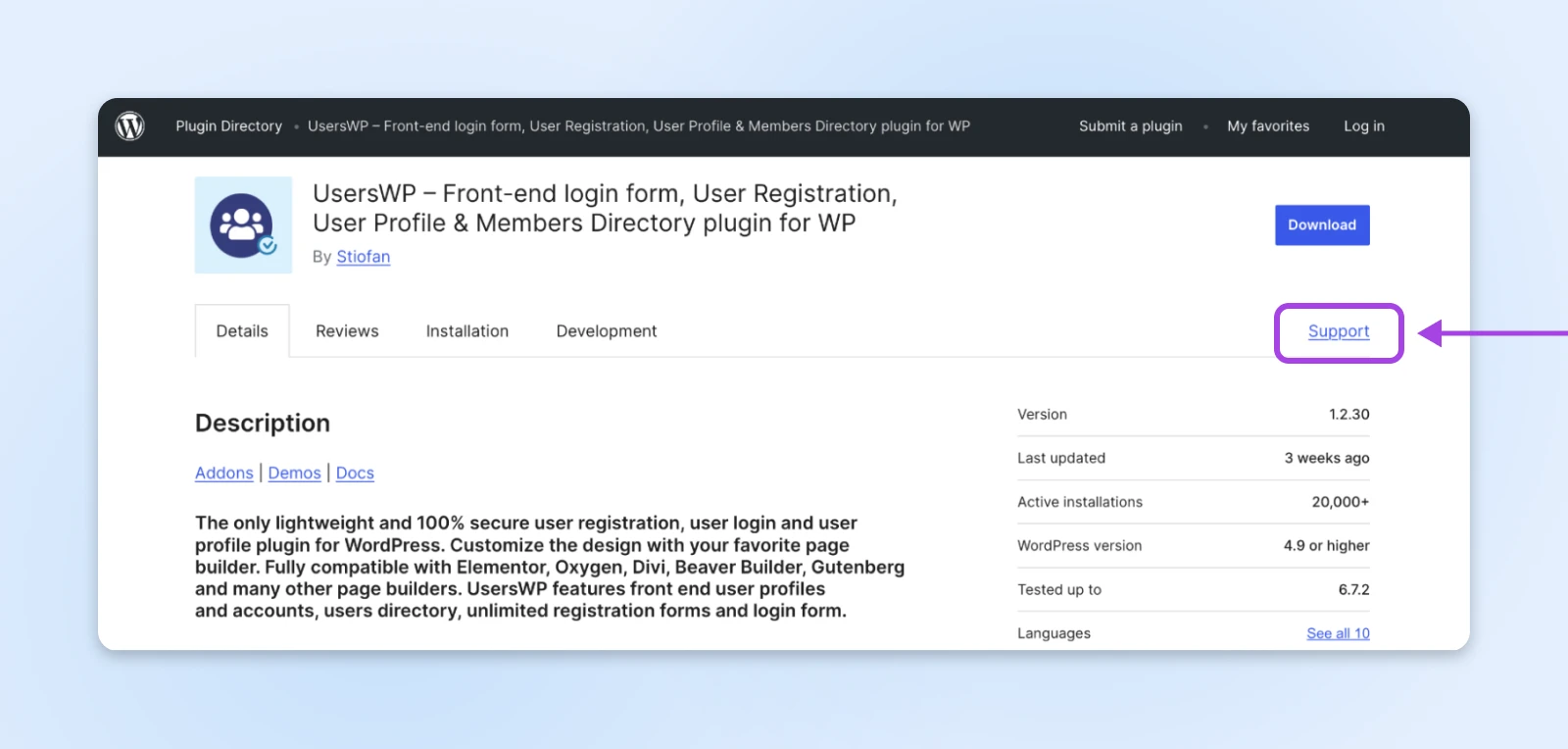
On this page, you’ll see all the support tickets WordPress users have raised.
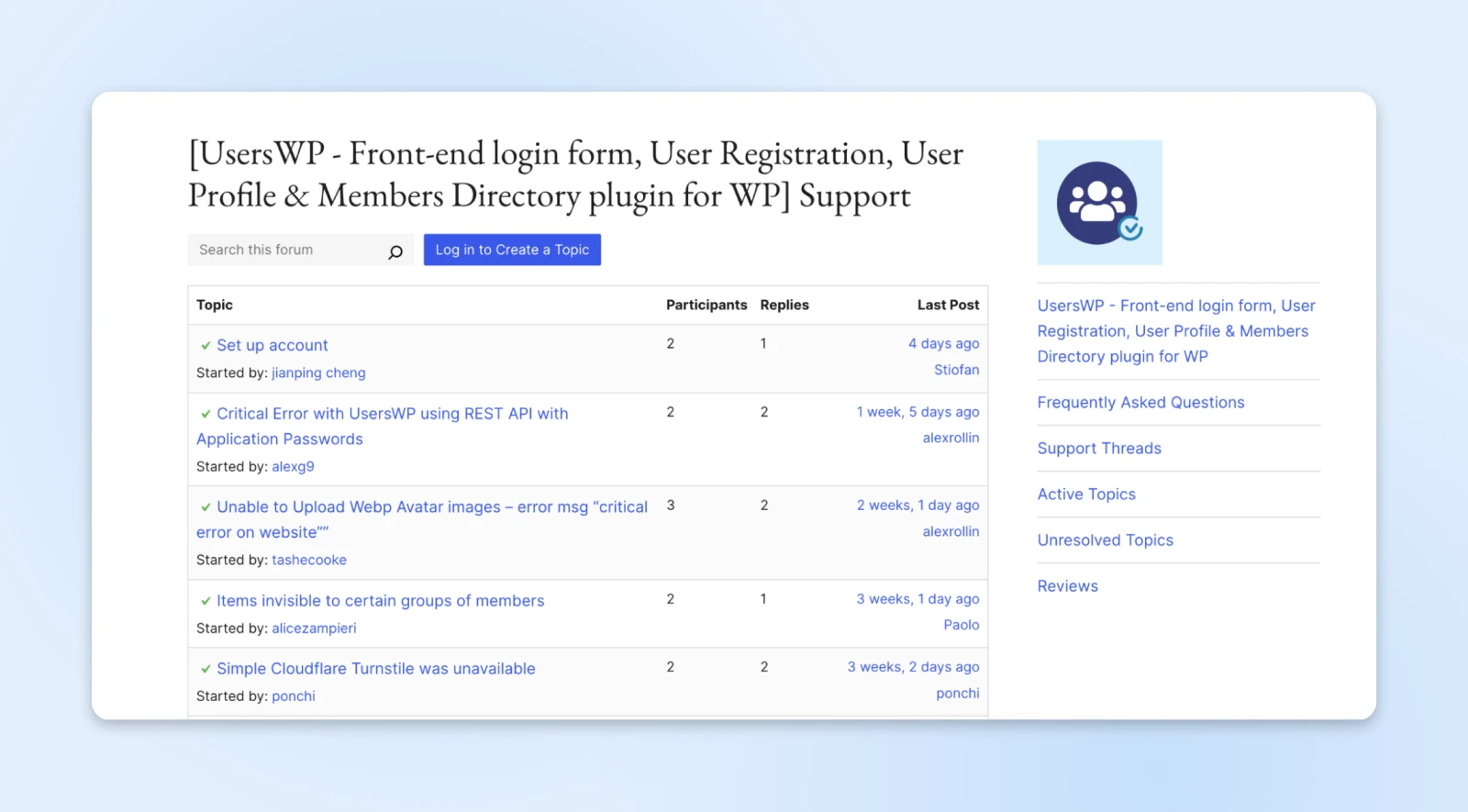
If you notice the developer actively responding to, resolving queries, even adding new features on request, you can safely consider trying the plugin out.
But sometimes, you may notice that queries are left unanswered for weeks and there’s no actual development on the plugin. That’s when it’s better to stay away and find something more active.
4. Listen to Your Dashboard’s Warnings
WordPress is like that smart techie on your team who keeps everything in check.
If the WordPress core, a plugin or theme goes out of date, there’s a new vulnerability, or there’s a possible conflict, it sends you indications, notifications, and error messages to clearly state that.
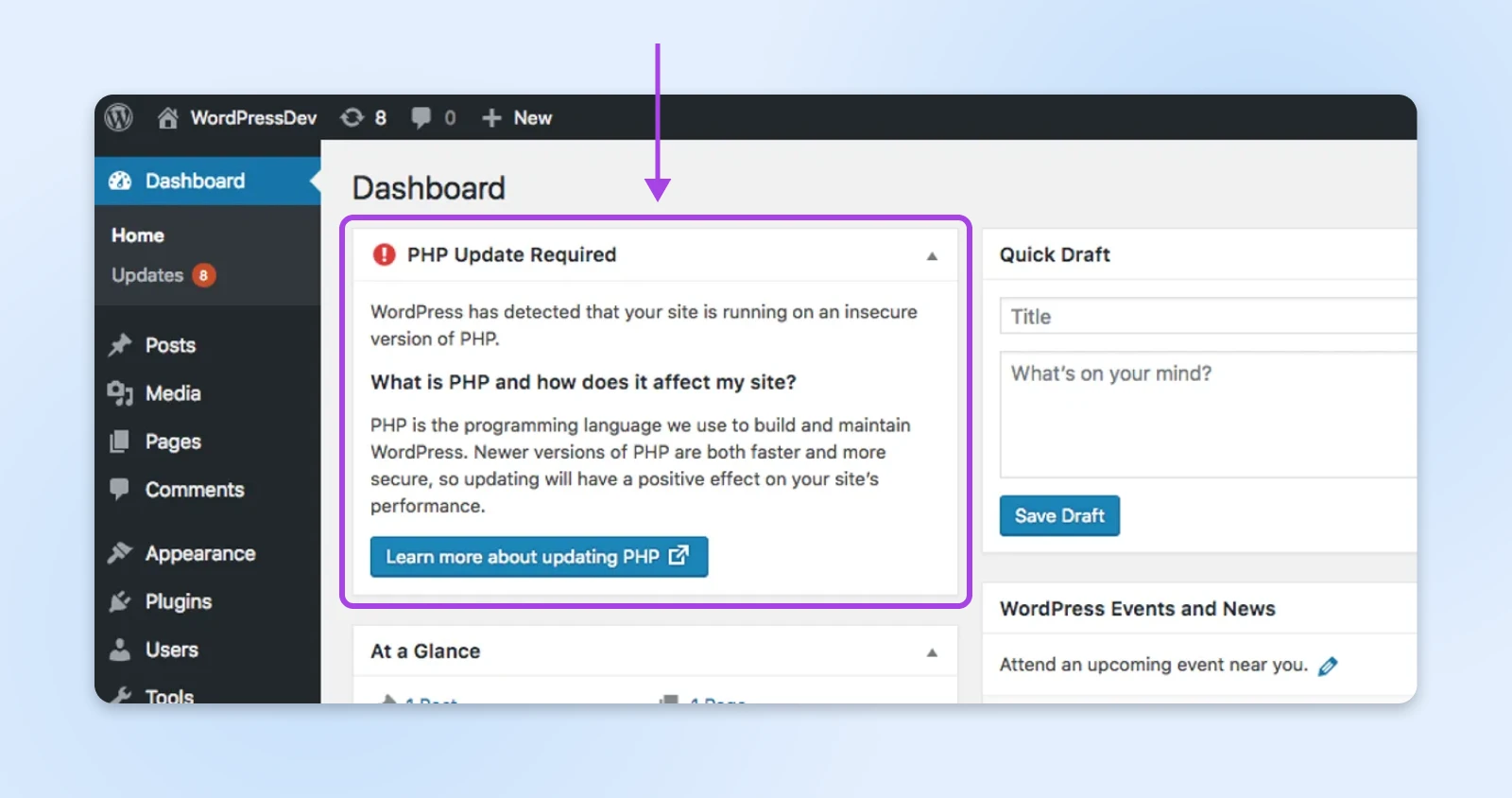
You can choose to override those and continue with the action you planned to take — but we advise listening to these warnings.
5. Run Automated Security Checks
There are many ways to secure your WordPress website. The easiest is to install just one security plugin like Wordfence, Patchstack, Sucuri, etc., and let it figure out if something is good for your website or not.
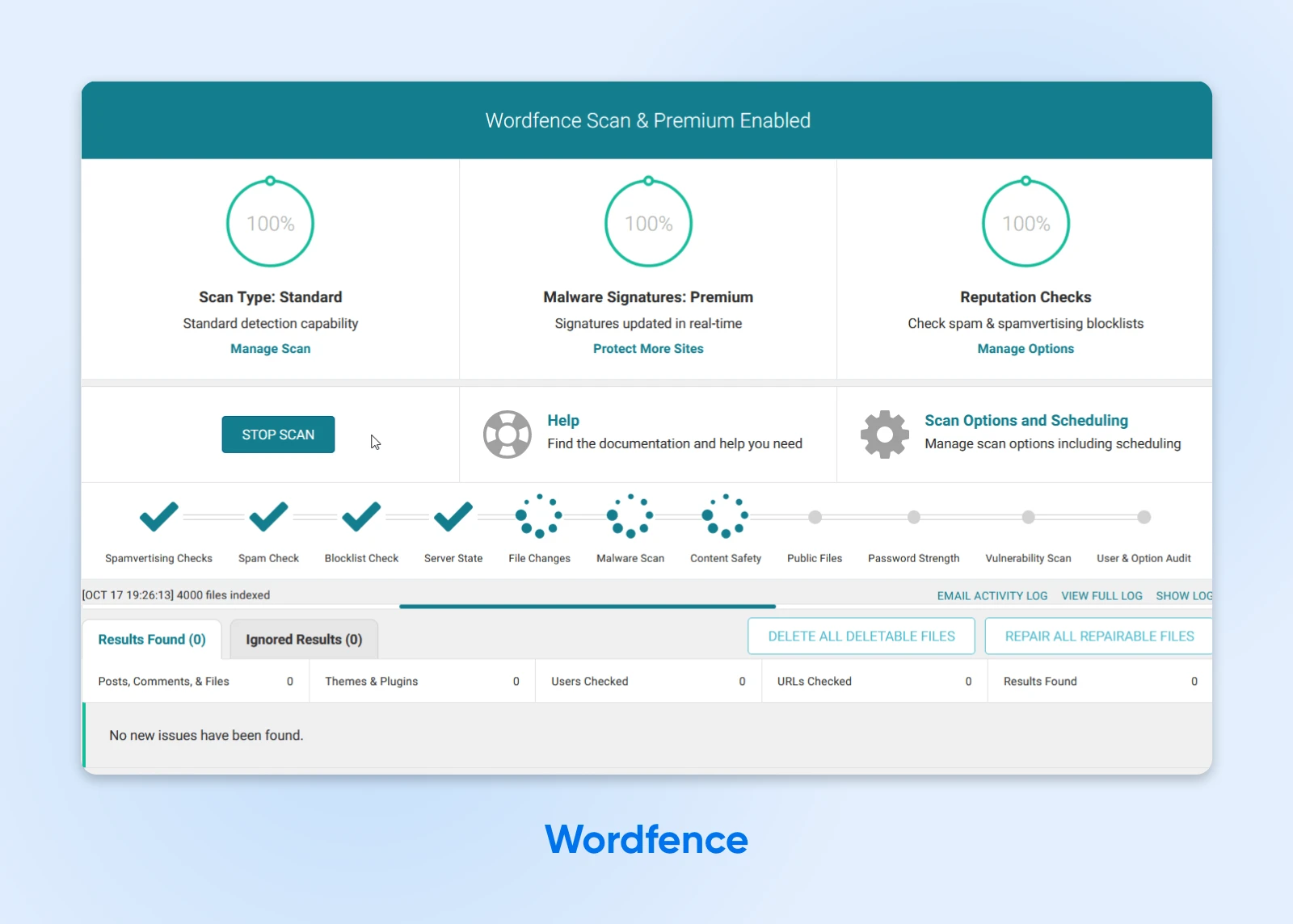
These plugins keep track of every security vulnerability, abandoned or outdated plugins, and any WordPress core issues out there. If your website shows signs that match any of these issues, the plugin will immediately notify you of the same.
They also perform automated background scans to detect malicious actors attempting to exploit outdated or abandoned plugins to gain unauthorized access to your website, or to identify previously safe plugins that have become infected.
6. The Popularity Test
And finally, if you don’t want to worry about the technicalities, leave it up to the crowd. The best WordPress plugins are also the ones with the most number of active installations.
When searching for plugins on the WordPress plugins directory, click the Advanced View tab under the plugin data (the section where we see the “Last updated” date).
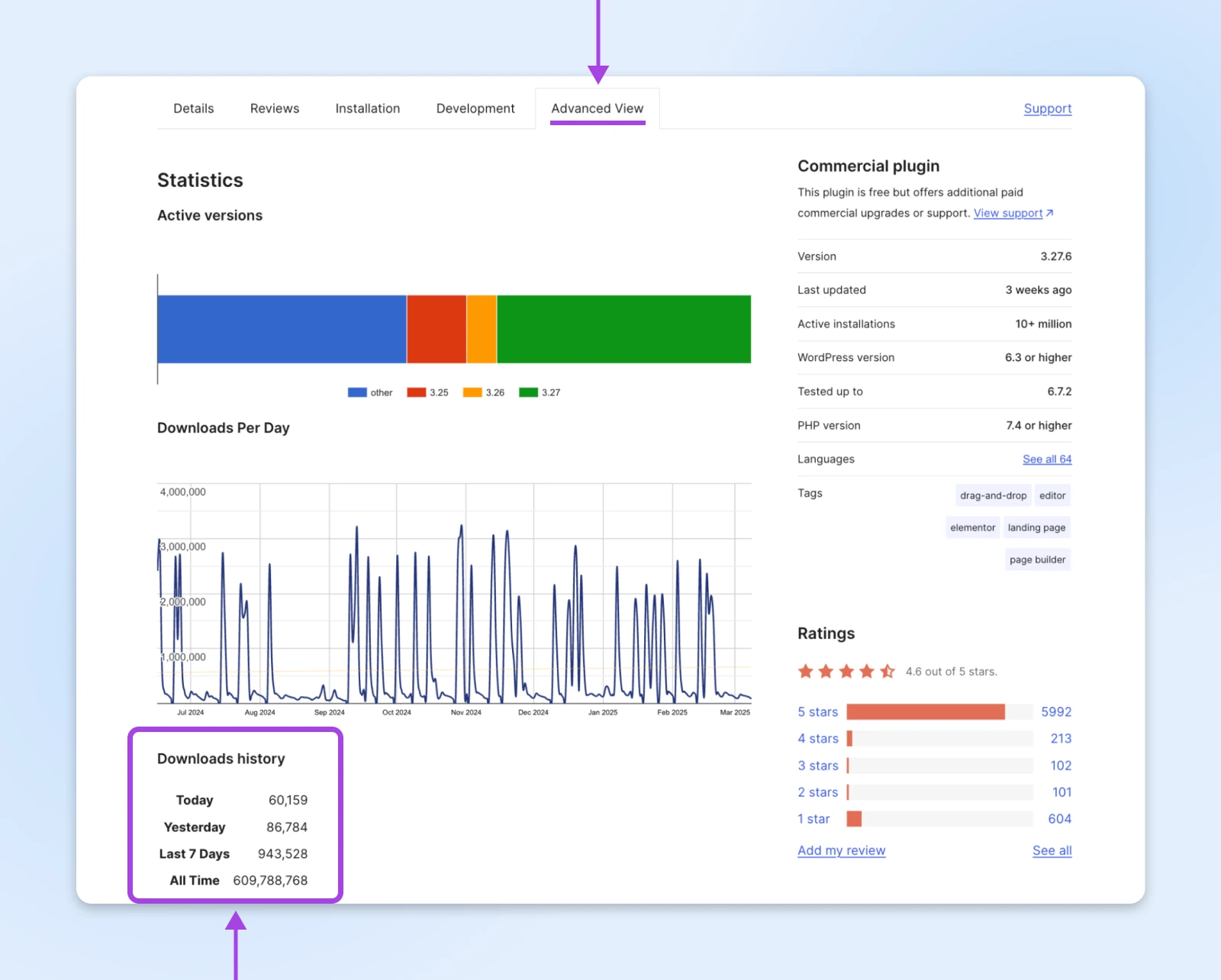
The advanced view shows you stats on which version of the plugins are in use across all the users, and how many downloads the plugin sees on a daily and weekly basis, along with the total installs.
Plugins with dwindling active installations (under 1,000), declining download trends, or consistently poor ratings may be on their way to abandonment — or already there.
For the most part, if you stick to the top WordPress plugins which are actively used by a lot of people, you’re generally going to be fine. That’s because the developers as well as the technically savvy users are on the lookout for issues in the code and solve them as they appear.
Found Abandoned Plugins? Here’s What To Do
So you’ve discovered the plugin equivalent of that forgotten Christmas tree in your WordPress site. Now what?
Here’s your step-by-step rescue plan to safely eliminate these security risks without breaking your site.
Step 1: Find an Alternative
Before you touch anything, find a replacement. Search for active plugins that offer similar functionality to your abandoned ones.
The best replacements will have:
- Updates within the last 3 months
- Compatibility with your WordPress version
- Strong ratings (4+ stars)
- A responsive developer community
- Good documentation
Nerd Note: Sometimes the perfect replacement isn’t a plugin at all! Many features once requiring plugins are now built into WordPress core or your theme.
Step 2: Create a Complete Backup
A backup is your website’s safety net. Don’t skip it!
Create a full backup of your WordPress site, including files and database.
You can use plugins or your host’s backup tools, but make sure you know how to restore from this backup if needed.
Hopefully, the backup won’t be necessary, but it will be a lifesaver if things go wrong.
Step 3: Test in a Staging Environment (When Possible)
For business-critical sites, test before you leap. If available, clone your site to a staging environment and replace the abandoned plugins there first.
If the site breaks, you need to investigate what went wrong and how to fix it in staging before you start working on the live website.
This environment becomes your consequence-free playground for new plugins to be tested properly with your specific setup.
Step 4: Carefully Replace the Plugin
Now for the main event. Here’s how to swap out those abandoned plugins.
- Activate the new plugin first, without deactivating the old one yet.
- Configure the new plugin to match your settings from the old one.
- Verify functionality works as expected with both active.
- Deactivate (but don’t delete) the abandoned plugin.
- Test your site thoroughly to ensure nothing broke.
When you’re sure everything is working as it should, get rid of that old WordPress plugin.
Step 5: Post-Replacement Check-Up
After the switch, give your site a thorough examination. Check your site’s front end and back end for any issues.
Look for visual glitches, functionality problems, or error messages. And pay special attention to features that relied on the replaced plugin.
Should You Ever Keep an Abandoned Plugin?
Let’s face it — sometimes you need an abandoned plugin that your site absolutely depends on.
Maybe it handles a unique function (like a specific checkout recommendation system) that no other plugin matches, or perhaps you’ve built custom integrations around it.
So, can you (and should you) keep it? Well…it’s complicated.
Keeping an abandoned plugin is risky. You should only consider keeping it if:
- The plugin serves a critical function with no viable alternatives.
- Your business workflow depends on the custom features it provides.
- The plugin is relatively simple with minimal code surface area (you can have a developer review the plugin code on GitHub).
- You’ve thoroughly tested it with your current WordPress version and it plays nice.
If all these elements are satisfied, you can consider keeping the plugin. But we’d still recommend finding a way to maintain the code with the help of a developer or getting rid of it as soon as you can.
The Extra Security Precautions You Must Take
If you decide to keep that abandoned plugin hanging around, you’ll need to build a fortress around it.
- Create a plugin-specific firewall: Use security plugins like Wordfence or Sucuri to create custom firewall rules specifically targeting potential vulnerabilities in your abandoned plugin. These act as your first line of defense against attacks targeting known weaknesses.
- Implement regular code audits: Hire a developer to periodically review the plugin’s code for security vulnerabilities. Yes, this costs money, but it’s significantly cheaper than dealing with a hacked site and its aftermath.
- Set up enhanced monitoring: Configure alerts for any unusual activity related to the plugin. Early detection can mean the difference between a minor issue and a full-blown security breach that takes down your entire site.
- Isolate when possible: If feasible, run the abandoned plugin on a separate subdomain or environment, limiting its access to your main site’s sensitive data and functions — think of it as a quarantine zone.
Proactive Steps To Take Control of Plugin Health
As cliche as it is, prevention beats cure.
Here’s how to build a healthy plugin ecosystem that keeps your WordPress site secure and performing at its best.
Schedule Regular Plugin Audits
Think of this as your site’s quarterly checkup.
Mark your calendar for a thorough plugin review every three months. During these audits, evaluate each plugin’s recent update history, compatibility status, and whether you still actually need it.
This routine maintenance prevents plugin problems before they start and keeps your site lean.
Choose Plugins With Strong Track Records
Not all plugins are created equal. When adding new tools to your site, look for these healthy indicators:
- Regular updates (at least quarterly)
- Large, active user base (10,000+ installations)
- Responsive developer support (check how quickly questions get answered)
- Detailed documentation and clear development roadmap
Adopt the “Less is More” Philosophy
Your WordPress site isn’t a plugin collection showcase. Every plugin adds code, complexity, and potential security issues.
Ask yourself: “Does this plugin solve a real problem I have right now?”
If not, it doesn’t belong on your site. Aim for the minimum number of plugins necessary to achieve your goals.
Set Up Automatic Update Notifications
Stay informed without constant dashboard checking. Configure email alerts for available plugin updates through your host’s tools or a management plugin. WordPress can also handle updates itself: the Enable auto-updates toggle on the Plugins screen has been built into core since WordPress 5.5.
These email alerts help you keep track of any critical security patches or compatibility updates, even when you’re busy running your business.
Consider a Managed WordPress Hosting Solution
Sometimes, it’s best to just hand things over to a professional so you can work on your business.
Services like DreamPress handle most of WordPress maintenance — updates, security, and daily backups — and their WordPress experts help out if something breaks.
Abandoned WordPress Plugins FAQ
How do I know if a WordPress plugin is abandoned?
Check the “Last Updated” date on the plugin’s directory page. More than a year without updates is a caution sign, and the “hasn’t been tested with the latest 3 major releases” warning is a strong one. A silent support forum seals it.
Is it safe to keep using a plugin that hasn’t been updated in a year?
It’s a risk that grows over time. Nobody is patching security holes or testing new WordPress releases against it. If it still works today, start planning a replacement now rather than waiting for it to break — or be exploited.
What happens when a plugin is removed from the WordPress.org directory?
It keeps running on your site, but it stops receiving updates through your dashboard — and you won’t necessarily be told it was removed. That silent gap is exactly why regular plugin audits matter.
Should I delete or just deactivate an abandoned plugin?
Delete it once you’ve confirmed your replacement works. A deactivated plugin’s files stay on your server, and some vulnerabilities can still be exploited through them. Deactivation is a testing step, not a security fix.
Your Site Deserves Better Than Plugin Cobwebs
Like that forgotten Christmas tree, abandoned plugins might have served you well once — but their time has passed. You cannot risk the security and performance of your WordPress site with these abandoned plugins.
But, not everyone has the time or technical expertise to monitor plugins for signs of abandonment.
DreamPress can take care of that for you. It handles updates, security, and daily backups, with built-in server-side caching and 24/7 support from in-house WordPress experts.
Meaning, you focus on creating content and running your business while DreamPress gives you peace of mind that your site is well taken care of.
So go ahead — give your WordPress site the long-overdue cleanup it deserves, or let the pros at DreamPress handle it for you.

Unbeatable WordPress Hosting
Reliable, lightning-fast hosting solutions specifically optimized for WordPress.
See More