What is the wp-content Folder?
wp-content is the folder in a WordPress installation that stores everything you add to your site: themes, plugins, uploaded media, and files your plugins create, such as caches and backups. WordPress core lives in separate folders, so wp-content holds everything unique to your site and is the most important folder to back up.
More About the wp-content Folder
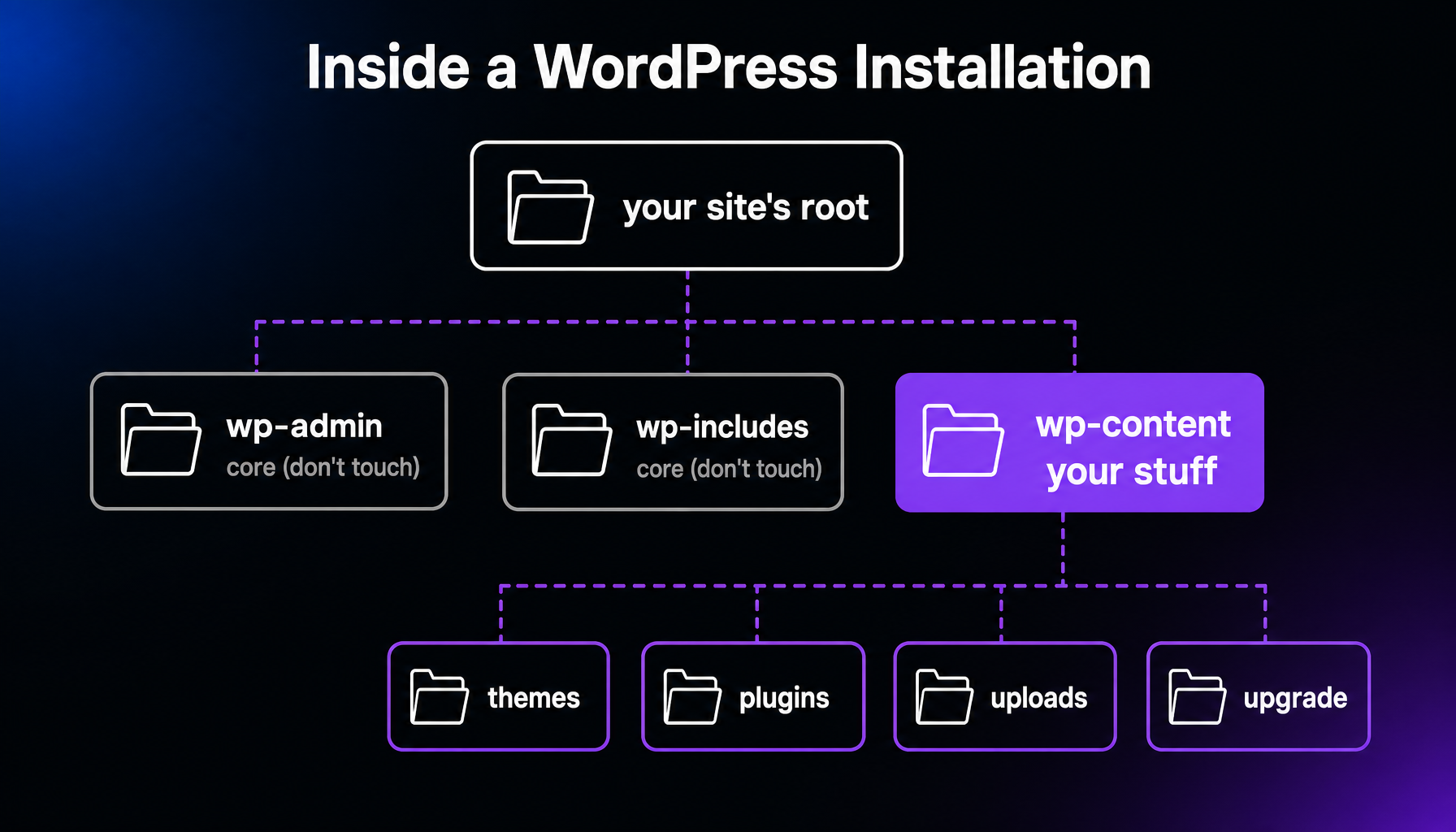
Every WordPress site has the same three folders at its root: wp-admin and wp-includes, which hold WordPress core code you should never edit, and wp-content, which holds your stuff. When you install a theme or upload an image to the media library, WordPress files it under wp-content.
What’s inside the wp-content folder?
You’ll almost always find these four subfolders, though exact contents vary by site:
- themes. Every theme installed on your site, active or not, with one subfolder each.
- plugins. Same idea: one subfolder per installed plugin.
- uploads. Your media library: images, videos, and documents, organized into year and month folders by default.
- upgrade. A temporary workspace WordPress uses during updates.
Plugins often add their own folders too, such as caches and backups. You may also see a languages folder, where WordPress stores translations, and a mu-plugins folder for “must-use” plugins that load automatically and can’t be deactivated from the dashboard.
Where is the wp-content folder?
In your site’s root directory, wherever WordPress is installed, alongside wp-admin, wp-includes, and files like wp-config.php. You won’t see it from the WordPress dashboard. To browse it, connect with SFTP or use the file manager in your hosting control panel. The root folder’s name varies by host: it’s often your domain name, or a generic name like public_html.
Is it safe to change files in wp-content?
Yes, with care. Careful edits are normal — child theme files live here, for example — but mistakes here are the classic cause of the WordPress “white screen of death.” You can disable a broken plugin by renaming its folder inside wp-content/plugins, a standard rescue trick. Two rules keep you safe: back up before touching anything, and never edit wp-admin or wp-includes at all, since updates overwrite them.
Frequently Asked Questions
Powerful WordPress Hosting
Reliable, lightning-fast hosting solutions specifically optimized for WordPress. Find the perfect plan for you by clicking below.
WordPress Hosting Plans