What is a Widget Area?
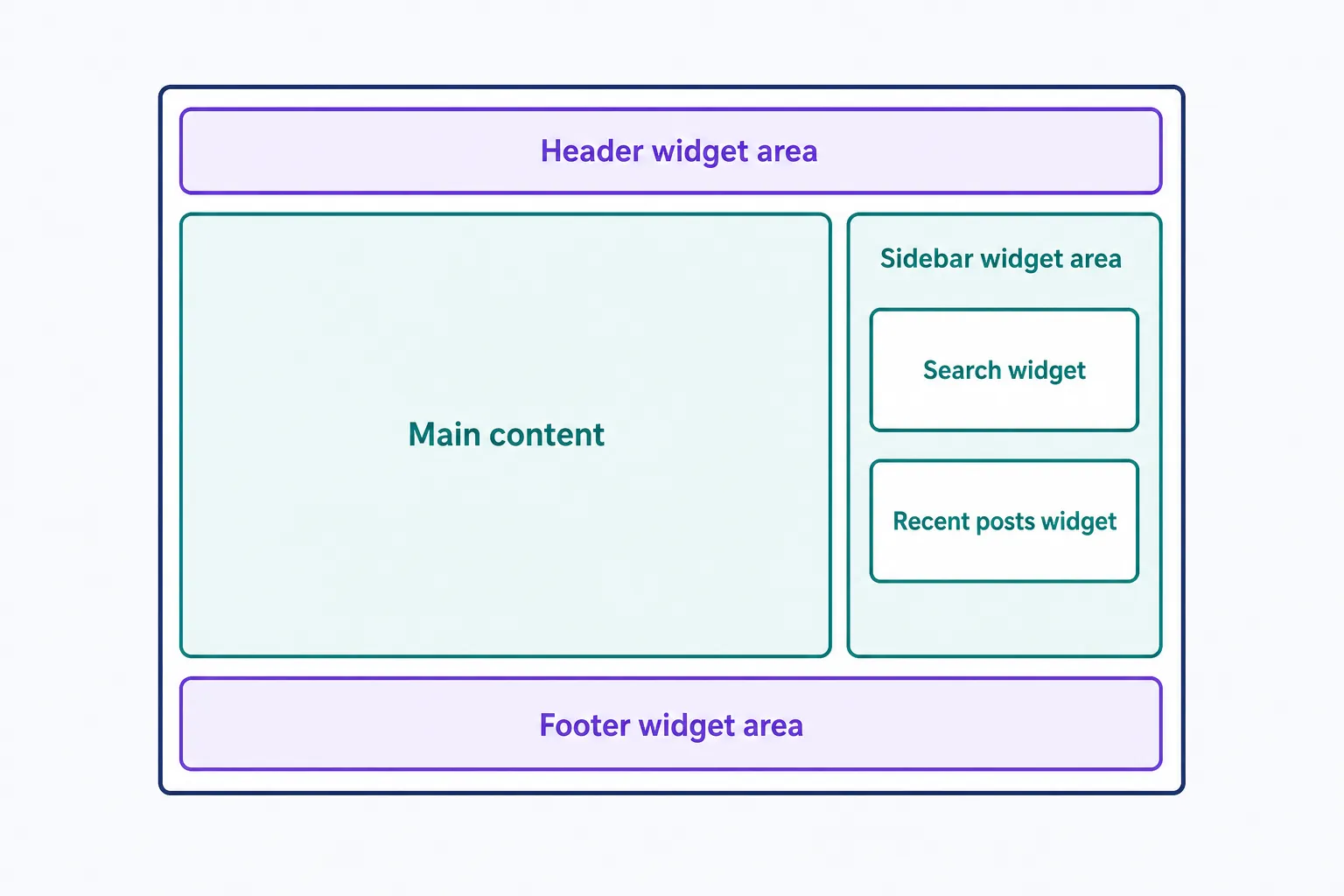
A widget area is a location a WordPress theme defines where you can place widgets, such as a search box or recent-posts list. Widgets in an area appear on every page that uses that region, typically a sidebar or footer. Block themes, introduced in WordPress 5.9, don’t use widget areas; you place blocks in the Site Editor instead.
More about widget areas
To start featuring widgets on your WordPress website, you’ll need to choose what goes in each widget area your theme provides. Most classic themes register widget areas in the sidebar and footer, and some add more above or below the content or in the header. Block themes, introduced in WordPress 5.9 (January 2022), don’t use widget areas at all: you place blocks anywhere in the Site Editor instead.
What widget areas are for
Anything you place in a widget area appears on every page that uses that region of the layout. That makes widget areas the home for content you want repeated site-wide: a search box, a category list, a signup form, or a social media feed. Add the widget once and it shows up everywhere. Your theme decides how many areas exist and where they sit. The Twenty Seventeen theme, for example, registers a widget area in the footer of every page.
Widget vs. widget area
The two terms travel together but name different things:
- Widget: an individual piece of content or functionality, such as a search box or a recent-posts list. It’s the thing you place.
- Widget area: the container a theme defines to hold widgets, which controls where they render. It’s the place you put them.
One is the content; the other is the location.
Editing widget areas
On a classic theme, go to Appearance > Customize > Widgets to edit with a live preview, or head straight to Appearance > Widgets, a screen that has been block-based since WordPress 5.8. Drag widgets or blocks into any area the theme registers, then save.
On a block theme, neither menu appears and the Customizer isn’t available. Edit the equivalent header, footer, and sidebar regions with blocks in the Site Editor at Appearance > Editor. If you can’t find the Widgets screen, your active theme is the reason.
Adding a new widget area
You can add extra widget areas to a classic theme in three steps:
- Register the area with
register_sidebar()in the theme’s functions.php file. - Output it with
dynamic_sidebar()in the template file where it should appear, such as header.php or footer.php. - Add widgets to the new area at Appearance > Widgets.
Make those edits in a child theme, not the parent, so a theme update doesn’t overwrite your code. Our guide to WordPress widgets and sidebars walks through the full code.
Frequently Asked Questions
Powerful WordPress Hosting
Reliable, lightning-fast hosting solutions specifically optimized for WordPress. Find the perfect plan for you by clicking below.
WordPress Hosting Plans